Fix WordPress issues with this complete guide to plugin errors, Internal Server Errors, syntax errors, database connection problems, 403 Forbidden errors, connection timeouts, CSS issues, theme conflicts, and WordPress bugs.
Introduction
WordPress is one of the most flexible website platforms available, but that flexibility also means that websites can experience a wide range of technical problems. A plugin update can suddenly break a page, a small PHP mistake can trigger a syntax error, a hosting problem can cause an Internal Server Error, or a database connection failure can make the entire website inaccessible. Even problems that appear simple, such as missing CSS or a 403 Forbidden response, can have several different underlying causes.
For a business website, these problems should never be treated as minor inconveniences. A broken website can prevent customers from completing purchases, submitting forms, reading important information, or contacting a company. Technical failures can also affect website usability, accessibility, performance, and search visibility. This is why fixing WordPress issues requires a structured troubleshooting process rather than randomly changing settings until something appears to work.
A reliable troubleshooting process starts by identifying exactly what has failed. The error message, affected URL, recent website changes, plugin updates, theme modifications, hosting changes, and server logs can all provide valuable evidence. WordPress’s official documentation provides guidance for common problems including the White Screen of Death, plugin conflicts, theme problems, database connection failures, internal server errors, and other technical issues. WordPress common errors
For website owners working with WP Maintenance Service, the objective should not simply be to make an error disappear temporarily. A proper solution should restore the website while preserving security, performance, compatibility, database integrity, and future maintainability.
This guide covers the most important WordPress problems website owners encounter, including plugin errors, Internal Server Errors, syntax errors, database connection errors, HTTP 403 Forbidden errors, connection timeouts, CSS problems, theme conflicts, WordPress bugs, and recurring technical failures. Each section focuses on practical diagnosis and responsible fixes so that readers can understand not only what to change, but also why the problem occurred.
Understanding WordPress Issues Before Trying to Fix Them
Before attempting to fix WordPress issues, it is important to understand that WordPress itself is only one component of a modern website. A typical WordPress installation depends on WordPress core, PHP, a database, plugins, a theme, JavaScript, CSS, the web server, hosting configuration, DNS, SSL, caching systems, security controls, and sometimes external APIs. A failure in any one of these layers can create a problem that appears to be a WordPress error.
For example, a plugin may produce a fatal PHP error, but the deeper cause could be an incompatible PHP version. A database connection error may look like a WordPress database failure while the real problem is an unavailable database server or incorrect credentials. A 403 error might appear to be a WordPress permission problem when a web application firewall is actually blocking the request. Similarly, broken CSS may not mean that the stylesheet itself is incorrect; the browser could simply be receiving an outdated cached version.
This is why the first principle of WordPress troubleshooting is do not assume the visible symptom is the root cause. Instead, determine which layer is failing. Ask when the problem started, what changed immediately beforehand, whether the issue affects the entire website or one URL, whether logged-in administrators experience the same problem, and whether the problem appears on different devices or networks. These questions can dramatically reduce the number of possible causes.
It is also useful to classify problems into broad categories. Frontend problems commonly involve CSS, JavaScript, themes, templates, and page builders. Backend problems may involve plugins, PHP, WordPress core, or administrator functionality. Server problems can include permissions, configuration, PHP workers, resource limits, and rewrite rules. Database problems involve connectivity, credentials, corruption, permissions, or resource limitations.
Before making significant changes, create a reliable backup or use a staging environment. The official WordPress debugging documentation specifically recommends verifying that an appropriate backup or staging environment exists before modifying a website. WordPress debugging documentation This is especially important when troubleshooting database files, theme code, plugin files, or server configuration.
How to Diagnose a WordPress Error Systematically
The most effective way to fix a WordPress error is to diagnose it systematically. Start by recording the exact message displayed by the website. If the browser shows an HTTP status code, record it. If WordPress displays a critical error, copy the wording. If the problem affects only one page, record the URL. If the error appeared after an update, identify exactly which component was updated.
The next step is to reproduce the problem. Open the affected page in a private browser window and determine whether the same behavior occurs without an existing login session. Test another browser or device when appropriate. If possible, compare the frontend with the WordPress dashboard. If the dashboard works but the public website does not, the issue may involve the theme, frontend plugins, CSS, JavaScript, or caching. If both areas fail, investigate PHP, database, server, permissions, and WordPress core issues.
Logs are among the most valuable diagnostic resources available. WordPress includes debugging features such as WP_DEBUG, WP_DEBUG_LOG, and WP_DEBUG_DISPLAY. The official documentation explains how these tools can help identify PHP errors, warnings, deprecated functions, and other technical problems. WordPress debugging
For a production website, however, debugging should be configured carefully. Displaying detailed PHP errors directly to visitors can expose technical information that should remain private. A safer approach is generally to log the error while keeping detailed error output hidden from public visitors. WordPress documents WP_DEBUG_LOG and WP_DEBUG_DISPLAY specifically for this purpose. WP_DEBUG_LOG
A practical diagnostic sequence is:
- Record the exact error.
- Identify when it started.
- Identify recent changes.
- Reproduce the problem.
- Determine whether it affects the frontend, backend, or both.
- Review WordPress and server logs.
- Test plugins systematically.
- Test the active theme.
- Check PHP, database, permissions, and server configuration.
- Apply the smallest appropriate fix.
- Test the entire website afterward.
This approach is much safer than changing multiple settings simultaneously because each troubleshooting action produces evidence. If five different changes are made at once, it becomes difficult to determine which change actually solved the problem.
How to Fix WordPress Plugin Errors and Plugin Conflicts
Plugins are among the most common causes of WordPress problems because they extend the platform with additional PHP, JavaScript, CSS, database operations, scheduled tasks, APIs, and administrative features. A plugin can operate correctly for a long period and then begin causing problems after WordPress, PHP, another plugin, or the hosting environment changes.
Plugin conflicts can produce many symptoms, including critical errors, blank pages, HTTP 500 responses, broken layouts, JavaScript errors, missing functionality, slow pages, database warnings, and administrator login problems. The first objective is to determine whether a particular plugin is responsible.
If the WordPress dashboard remains accessible, deactivate suspicious plugins individually and test the affected functionality after each change. Start with plugins that were recently updated or installed, but do not automatically assume that the newest plugin is responsible. A compatibility problem can involve two plugins, a plugin and the theme, or a plugin and the server’s PHP version.
If the dashboard is unavailable, WordPress’s troubleshooting documentation explains alternative methods for manually deactivating plugins. WordPress troubleshooting documentation WordPress’s own common-errors guidance also recommends deactivating plugins individually to identify compatibility problems. WordPress common errors
Once the problematic plugin has been identified, consider the following options:
- Update the plugin to a compatible release.
- Check the plugin developer’s compatibility information.
- Temporarily roll back to a known-working version when appropriate.
- Contact the plugin developer with the exact error message.
- Replace an abandoned plugin.
- Remove plugins that are no longer necessary.
- Test major updates on staging before production deployment.
An important maintenance principle is do not keep unnecessary plugins installed simply because they are inactive. Every additional component increases the complexity of the website’s maintenance environment. Plugin selection should be based on functionality, maintenance quality, compatibility, security, performance, and actual business value.
How to Fix WordPress Internal Server Error 500
The Internal Server Error, commonly returned as HTTP 500, is one of the most frustrating WordPress errors because the status itself does not identify the exact cause. It tells you that the server encountered an unexpected condition while processing the request, but the underlying problem could be PHP, a plugin, a theme, .htaccess, permissions, server resources, or hosting configuration.
The official WordPress documentation includes Internal Server Error among common WordPress problems and recommends investigating the underlying cause rather than treating the HTTP response as the diagnosis. Internal Server Error troubleshooting
Start by asking what changed immediately before the error appeared. If you edited functions.php, added custom PHP, updated a plugin, changed a theme, or modified server configuration, that event becomes an important clue. Check the PHP error log and WordPress debugging log where available. A fatal PHP error may identify the exact plugin, theme file, function, or line involved.
The .htaccess file should also be considered, particularly on Apache-based hosting. A damaged rewrite rule or incompatible directive can cause server errors. However, do not blindly delete or rewrite the file. Make a backup first and use WordPress’s standard permalink configuration where appropriate.
Server resources are another potential cause. Websites running large plugins, page builders, ecommerce functionality, image-processing operations, or heavy database queries may reach memory or execution limits. Increasing resource limits may help in some situations, but it is important to determine whether the underlying workload itself is inefficient.
A practical troubleshooting sequence is:
Backup → identify recent changes → inspect logs → test plugins → test theme → inspect .htaccess → review PHP resources → check hosting logs → retest.
Avoid changing several unrelated configurations simultaneously. The goal is to establish a clear cause-and-effect relationship between the troubleshooting action and the result.
How to Fix WordPress Syntax Errors
A WordPress syntax error generally occurs when PHP code contains invalid syntax. This frequently happens after editing functions.php, inserting custom PHP code, modifying a theme file, installing poorly written code, or making a manual change to a plugin file.
A syntax error can sometimes provide valuable information because the message may identify the affected file and approximate line number. However, the reported line is not always the exact location of the mistake. A missing semicolon, quotation mark, closing bracket, parenthesis, or brace earlier in the code can cause PHP to fail when it reaches a later statement.
For example, if one statement is missing a semicolon, PHP may report an error at the next statement. This is why you should inspect the surrounding code rather than deleting only the line mentioned in the error message.
If the syntax error occurred immediately after a custom code change, restoring the previous known-good version is often the safest recovery method. If the change was made directly to a theme or plugin file, compare the modified file with the original version supplied by the developer.
WordPress provides debugging tools that can help identify PHP errors and warnings. WordPress debugging tools WordPress also provides configuration documentation explaining its fatal-error handling and debugging options. WordPress wp-config.php documentation
To prevent syntax errors from becoming production emergencies:
- Avoid editing production PHP files without a backup.
- Test custom code in staging.
- Keep a copy of the previous working version.
- Use a suitable code editor with PHP syntax highlighting.
- Make one logical change at a time.
- Review the complete affected function after editing.
- Avoid adding unverified PHP snippets from random sources.
- Remove temporary debugging configuration after troubleshooting.
The safest solution is not merely to correct today’s syntax error. It is to improve the workflow so that the same class of error becomes less likely in the future.
How to Fix Error Establishing a Database Connection
The “Error Establishing a Database Connection” message means that WordPress cannot establish the database connection required to retrieve or store website information. Because WordPress relies heavily on its database, this error can make both the public website and administrative area unavailable.
One of the first things to check is the database configuration in wp-config.php. WordPress uses configuration values such as the database name, database username, database password, and database host. The official WordPress documentation explains these database settings in detail. WordPress wp-config.php documentation
Incorrect credentials are not the only possible cause. The database server may be unavailable, the database may not exist, the database user may lack appropriate permissions, the hosting environment may be experiencing an outage, or the database may have become damaged.
Start by confirming:
- Database name.
- Database username.
- Database password.
- Database host.
- Database existence.
- Database server availability.
- Database-user permissions.
- Hosting status.
- Recent migration or hosting changes.
Do not immediately run destructive database repairs. First create a verified backup if possible. Database repair should be approached carefully because WordPress databases contain important content, configuration, user information, plugin data, and other records.
The official WordPress common-errors documentation lists database connection problems among the major issues administrators may encounter and explains several possible causes. WordPress database connection troubleshooting
If the problem began after a hosting migration, pay particular attention to database host information and credentials. If it appeared without any website changes, check the hosting provider for database-server problems or resource limitations.
The key principle is verify before repairing. A database error does not automatically mean that the database is corrupted.
How to Fix HTTP Error 403 – Forbidden
An HTTP 403 Forbidden error means that the server understood the request but is refusing to allow access to the requested resource. In WordPress, this can result from security controls, incorrect permissions, server rules, .htaccess directives, firewall settings, CDN configuration, or other access restrictions.
The first step is determining where the 403 occurs. Does it affect the entire website, one page, the WordPress dashboard, media files, REST API requests, login requests, or a particular form submission? The scope of the error can provide an important clue.
For example, if only administrator requests return 403 responses, a security plugin or web application firewall may be blocking those requests. If a specific image returns 403, file permissions or server rules may be involved. If every page returns 403, investigate server configuration, hosting restrictions, DNS/CDN behavior, and access-control rules.
Do not solve a 403 error by making all files publicly writable or weakening security controls indiscriminately. Overly permissive settings can introduce security vulnerabilities without solving the original problem.
Check:
- Security plugin logs.
- Web application firewall events.
- Hosting security logs.
- File and directory permissions.
.htaccessrules.- CDN or proxy configuration.
- IP blocking rules.
- Recent security changes.
- Server access-control configuration.
- Whether the same URL works from another network.
A useful diagnostic technique is to temporarily isolate the security layer responsible for the response in a controlled environment. If the request succeeds after a specific security rule is disabled, that provides evidence about the source.
The correct objective is not simply to eliminate the 403. It is to restore legitimate access while retaining appropriate security protections.
How to Fix WordPress Connection Timed Out Errors
A connection timed out error occurs when communication between the client and server does not complete within the expected period. WordPress sites can experience timeouts because of server overload, slow database queries, long-running PHP processes, external API calls, insufficient resources, DNS problems, firewall restrictions, or resource-intensive plugins.
WordPress officially documents connection timeouts as one of its common error categories. WordPress connection timeout guidance
Start by identifying whether the timeout occurs everywhere or during one specific operation. If the homepage loads but a bulk-import tool times out, the problem is likely related to that operation. If every page fails, investigate the server, network, DNS, database, and hosting environment.
Large imports, backup operations, image processing, external API requests, and complex database queries can all require significant processing time. A plugin may therefore appear to be “broken” when the actual problem is that its operation exceeds the available server resources or timeout threshold.
Review available server metrics such as:
- CPU usage.
- RAM consumption.
- PHP worker availability.
- Database load.
- Disk usage.
- PHP execution limits.
- Server response time.
- External API response time.
Do not immediately increase every timeout setting. If a process normally takes two seconds and suddenly takes ninety seconds, increasing the timeout may hide an underlying performance problem.
Google’s developer guidance emphasizes that websites should be secure, fast, accessible, and functional across devices. Google Search developer guidance
Performance tools can help identify whether slow server responses are contributing to broader user-experience problems. The correct approach is to measure the bottleneck, identify its source, optimize the operation, and then retest.
How to Fix WordPress CSS Issues and Broken Styling
A WordPress CSS problem can make a functioning website look completely broken. Navigation menus may lose their styling, buttons can become oversized, columns can collapse, fonts may change, spacing can disappear, and mobile layouts can become unusable.
CSS problems often appear after theme updates, plugin updates, page-builder changes, custom CSS modifications, caching changes, CDN configuration changes, or website migrations. Sometimes the CSS itself is correct but the browser is loading an old cached version. In other situations, a stylesheet may fail to load because of a 404 or 403 response.
Begin by inspecting the affected element with the browser’s developer tools. Look at the Styles, Computed, Console, and Network panels. Determine whether the expected stylesheet has loaded and whether another CSS rule is overriding the expected declaration.
If the stylesheet request returns an error, investigate the URL, file availability, permissions, CDN, and server configuration. If the stylesheet loads correctly but the appearance remains wrong, inspect CSS specificity and the order in which stylesheets are being applied.
Caching is another frequent source of confusion. A WordPress caching plugin, server cache, CDN, or browser cache can continue serving an older stylesheet after a legitimate change. Purge the appropriate cache layers and retest.
CSS optimization features should also be investigated. Minification, concatenation, deferred loading, and CSS delivery optimization can occasionally interact badly with themes or plugins. Disable one optimization feature at a time to determine whether it is contributing to the problem.
A reliable CSS troubleshooting process is:
Inspect → identify missing or overridden rules → check stylesheet requests → clear relevant caches → test optimization features → check theme/plugin conflicts → retest desktop and mobile.
Google’s developer guidance states that websites should work well across devices and be fast and accessible. Google Search developer guidance Therefore, CSS troubleshooting should not stop when the desktop version looks correct. Test the website at multiple screen sizes before considering the issue resolved.
How to Fix WordPress Theme Conflicts and Theme Errors
WordPress themes control much more than colours and page layouts. A modern theme can contain PHP templates, JavaScript, CSS, hooks, custom functions, navigation systems, widgets, template parts, and integrations with plugins or page builders. Because of this, theme problems can cause both visual and functional failures.
A theme conflict may appear after a WordPress update, PHP version change, plugin installation, theme update, page-builder update, or custom modification. Common symptoms include missing layouts, broken navigation, PHP fatal errors, incorrect typography, missing CSS, template failures, and unexpected content changes.
One effective diagnostic method is to temporarily test the website with a compatible default WordPress theme. If the problem disappears when the default theme is active, the active theme becomes a strong suspect. However, this does not automatically mean the theme is defective. The issue could be an interaction between the theme and another plugin or custom code.
WordPress’s common-errors documentation specifically identifies themes as a possible source of serious problems and recommends testing with a default theme when diagnosing certain failures. WordPress common errors
When investigating a theme problem, compare:
- WordPress core version.
- Active theme version.
- PHP version.
- Recently updated plugins.
- Page-builder version.
- Custom CSS.
- Custom PHP.
- Template overrides.
- JavaScript errors.
- Server logs.
Avoid making permanent changes directly inside a parent theme when those changes need to survive future updates. Depending on the project, use a child theme or another appropriate customization method.
A reliable theme should be judged not only by appearance but also by compatibility, maintainability, security, performance, accessibility, update history, and suitability for the website’s requirements.
How to Fix WordPress Bugs and Recurring Website Errors
A WordPress bug is any unexpected behaviour that prevents the website from functioning as intended. Some bugs are obvious, such as a broken button or missing page element, while others are more subtle. A website may appear to work normally while a form silently fails, an ecommerce event is not recorded, a scheduled task does not execute, or a particular browser experiences a JavaScript failure. Effective bug fixing therefore requires more than checking whether the homepage appears normal.
Begin by documenting the behaviour precisely. Identify the affected page, user role, browser, device, action, expected result, and actual result. If the issue occurs only after a particular sequence of actions, document that sequence. Reproducibility is extremely valuable because a developer or administrator can investigate a consistent failure much more efficiently than a vague report such as “the website is broken.”
Next, determine whether the problem is caused by WordPress core, a plugin, a theme, custom code, JavaScript, CSS, the database, or the hosting environment. Test the same operation in a controlled environment and compare the result after selectively disabling components. Browser developer tools can expose JavaScript errors and failed network requests, while WordPress debugging and server logs can reveal PHP-related failures.
When a bug is identified, avoid applying a workaround that creates a second problem. For example, hiding an error with CSS does not fix the underlying PHP or JavaScript failure. Increasing server limits does not automatically fix inefficient code. Disabling a security feature permanently to make one request work can weaken the website. The best fix addresses the root cause while preserving the rest of the system.
For complex problems, create a reproducible test case:
Starting condition → action performed → expected result → actual result → error evidence → suspected component → controlled test → confirmed cause → corrective change → regression test.
This process also makes future maintenance easier. If the same bug returns, the documented history can reveal what caused it previously and prevent the team from repeating unsuccessful troubleshooting steps.
How to Fix WordPress Core Errors and Failed Updates
WordPress core updates are important for maintaining security, compatibility, stability, and functionality. However, updates can occasionally expose incompatibilities between WordPress, plugins, themes, PHP versions, custom code, or hosting configurations. A failed update may leave a website displaying an error, temporarily inaccessible, or stuck in maintenance mode.
The first rule when dealing with a failed update is do not panic and do not immediately perform multiple unrelated changes. Determine whether WordPress completed the update, whether the administrator area is accessible, and whether the public website is functioning. WordPress provides official documentation for updating the platform and recommends maintaining backups before updates.
Before major updates, review the website’s current versions and dependencies. Record the WordPress version, PHP version, active theme, important plugins, and any custom integrations. Check whether critical plugins and themes support the target WordPress version.
The official WordPress update documentation provides guidance on keeping WordPress updated. Keeping the core platform current is an important component of responsible website maintenance, but updates should still be tested appropriately.
If an update fails, investigate:
- PHP errors.
- Plugin incompatibility.
- Theme incompatibility.
- File permissions.
- Insufficient disk space.
- Server resource limitations.
- Interrupted update processes.
- Maintenance-mode problems.
- Corrupted or incomplete WordPress files.
- Hosting restrictions.
Do not download WordPress core files from unknown websites. Use official WordPress sources and maintain a verified backup.
After restoring functionality, perform a regression test. Check the homepage, important pages, login, forms, menus, search, media, ecommerce functionality, integrations, and any other business-critical features. An update is not successfully completed simply because the error message disappeared.
A mature WordPress workflow treats updates as controlled changes: backup → test → update → monitor → verify → document.
Advanced WordPress Troubleshooting: PHP, Hosting, Caching, and Server Configuration
Some WordPress problems cannot be resolved from the WordPress dashboard because the underlying issue exists at the hosting or server level. PHP configuration, web-server rules, database performance, filesystem permissions, caching layers, CDN behaviour, DNS, SSL, and server resource limits can all affect WordPress.
PHP is particularly important because WordPress runs primarily on PHP. A plugin or theme may require functions, extensions, or PHP behaviour that are unavailable in the current environment. If a website suddenly breaks after a PHP version change, compatibility should be one of the first areas investigated.
Hosting resources also matter. A website may encounter problems when CPU, memory, disk space, PHP workers, database connections, or other resources become constrained. Resource exhaustion can manifest as slow loading, connection timeouts, 500 errors, failed background jobs, or intermittent failures.
Caching adds another layer. A website may have browser caching, WordPress plugin caching, server-level caching, object caching, and CDN caching simultaneously. This can make troubleshooting confusing because a corrected file or setting may not immediately appear to visitors.
The solution is to identify the complete request path:
Visitor → DNS → CDN/proxy → web server → PHP → WordPress → plugin/theme → database → response → caching layers.
If an error appears intermittently, server and infrastructure monitoring becomes especially important. Look for patterns involving traffic spikes, scheduled tasks, backup processes, database operations, or external API calls.
Security controls should also be considered. A firewall or hosting security system can block requests that resemble malicious traffic. Before disabling security controls, inspect the relevant logs and determine why the request was blocked.
For performance diagnostics, PageSpeed Insights can provide useful performance information, while Google’s documentation on Core Web Vitals explains important user-experience measurements.
Advanced troubleshooting should therefore combine application-level evidence with infrastructure-level evidence. This is particularly important for websites where errors appear intermittently or only under heavier traffic.
Common Mistakes Website Owners Make When Fixing WordPress Errors
One of the biggest WordPress troubleshooting mistakes is changing too many things at once. A website owner may deactivate several plugins, change the theme, edit .htaccess, modify PHP settings, clear caches, and change file permissions simultaneously. If the website starts working, nobody knows which change solved the problem. If it becomes worse, identifying the new problem becomes even harder.
Another common mistake is editing production files without a backup. Files such as functions.php, configuration files, plugin files, and .htaccess can be extremely important. A single incorrect character can trigger a syntax error or server failure. Before making changes, preserve the working version so that you have a recovery path.
Website owners also frequently increase permissions unnecessarily when attempting to fix 403 or filesystem problems. Making everything writable can introduce security weaknesses without addressing the real cause. Permissions should be appropriate for the server environment rather than simply being made as permissive as possible.
Another mistake is ignoring logs. Error messages shown in the browser are often only the surface-level symptom. PHP logs, WordPress debug logs, server logs, database logs, security logs, and browser developer tools can provide significantly more information.
It is also risky to download replacement plugins, themes, or WordPress files from unofficial sources. Even if a file appears to solve the immediate problem, it could contain malicious modifications. Use trusted, official distribution channels and verify the source of replacement software.
Other common mistakes include:
- Reinstalling WordPress before identifying the cause.
- Deleting plugins instead of first determining whether they caused the problem.
- Ignoring recent changes.
- Disabling security controls permanently.
- Editing the database without a backup.
- Copying random code snippets into PHP files.
- Ignoring mobile testing after CSS changes.
- Failing to test checkout and forms after repairs.
- Leaving debugging information publicly visible.
- Forgetting to document what was changed.
Google’s Search Essentials emphasize following spam policies and building websites that provide useful experiences. Technical repairs should support those principles rather than introduce shortcuts that create new problems.
The best troubleshooting mindset is measure first, change carefully, test thoroughly, and document the result.
Best Practices Summary for Long-Term WordPress Stability
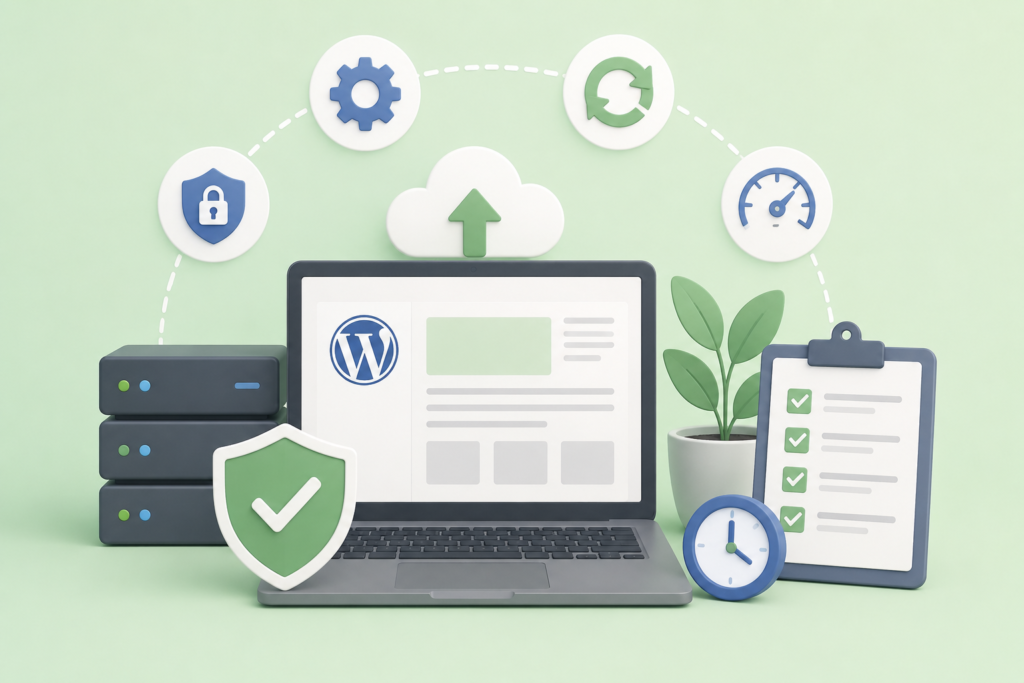
Fixing a WordPress problem is only one part of maintaining a reliable website. Long-term stability requires preventive practices that reduce the probability of recurring failures. A website should be treated as a living technical system rather than something that only needs attention when an error appears.
Start with reliable backups. Backups should cover both website files and the database, and they should be tested periodically. A backup that cannot be restored successfully is not a dependable recovery strategy.
Keep WordPress, plugins, and themes appropriately updated. However, do not update blindly on critical production websites. Use staging environments where practical, review compatibility, and test important functionality after major changes.
Maintain a lean plugin environment. Remove unnecessary components, avoid abandoned software, and evaluate whether every plugin has a clear purpose. Excessive dependencies increase complexity and make troubleshooting more difficult.
Security should be integrated into maintenance. Use strong authentication practices, appropriate access controls, reputable security tools, secure hosting, and current software. The official WordPress hardening documentation provides recommendations for improving WordPress security.
Performance should also be monitored. Regularly check server response times, Core Web Vitals, database performance, image optimization, caching, and frontend resources. Google’s Core Web Vitals provide useful user-experience metrics that can complement broader performance monitoring.
For SEO and technical quality, follow Google’s SEO Starter Guide and Search Essentials. These resources provide authoritative guidance on helping search engines understand websites while prioritizing users.
A practical long-term WordPress checklist includes:
Backups → updates → staging → security monitoring → plugin review → theme review → performance monitoring → database maintenance → error monitoring → SEO checks → accessibility checks → regular testing.
The most important lesson is that WordPress error fixing should become part of a wider maintenance strategy. When websites are monitored and updated responsibly, many serious problems can be identified before they become major outages.
FAQs
What is the first thing I should do when my WordPress website breaks?
The first step is to avoid making unnecessary changes. Record the exact error message, identify which pages are affected, and determine whether the WordPress dashboard is accessible. Then consider what changed immediately before the problem appeared, such as a plugin update, theme change, WordPress update, PHP change, custom code modification, or hosting migration.
If the problem is serious, create or verify a backup before making further modifications. Then use WordPress debugging and relevant server logs to gather evidence. The official WordPress debugging documentation provides guidance on identifying PHP errors and other problems.
How do I know whether a plugin is causing a WordPress error?
The most reliable method is controlled testing. If the dashboard works, deactivate plugins individually and test the affected functionality after each change. If the error disappears after a specific plugin is disabled, investigate that plugin further.
If the dashboard is inaccessible, WordPress provides troubleshooting methods for manually disabling plugins. WordPress troubleshooting documentation explains several approaches.
Remember that the plugin may not be defective by itself. It may be incompatible with another plugin, the active theme, the WordPress version, PHP, or another part of the hosting environment.
Can a WordPress theme cause an Internal Server Error?
Yes. Themes can contain PHP code, templates, JavaScript, CSS, and custom functions. A PHP fatal error or incompatible theme component can therefore contribute to an HTTP 500 Internal Server Error.
Testing with a compatible default theme can help determine whether the active theme is involved. However, the goal should be to identify the exact incompatibility rather than simply replacing the theme without investigation.
Why does WordPress show “Error Establishing a Database Connection”?
This error means WordPress cannot establish the required database connection. Possible causes include incorrect database credentials, an unavailable database server, incorrect database host information, insufficient database-user permissions, resource limitations, or database problems.
Check the database configuration in wp-config.php and verify that the database exists and is accessible. The official WordPress wp-config.php documentation explains the relevant configuration settings.
Do not assume that database corruption is the cause without evidence.
How can I fix a WordPress 403 Forbidden error?
First determine what is being blocked. Check whether the 403 affects the entire website, one URL, administrator requests, media files, forms, or API requests.
Then investigate security plugins, web application firewalls, hosting security rules, .htaccess, file permissions, CDN settings, and server access controls. Avoid simply making permissions more permissive because that can create security problems.
The correct solution is to identify the rule denying legitimate access and adjust it appropriately.
Why is my WordPress website suddenly showing a syntax error?
A syntax error usually indicates invalid PHP code. Common causes include missing semicolons, brackets, parentheses, quotation marks, or incorrectly structured PHP statements.
If the problem appeared immediately after editing a PHP file, restore the previous working version if necessary and inspect the recent change carefully. WordPress debugging tools can help identify PHP problems. WordPress debugging is an appropriate starting point.
Why did my WordPress website lose its CSS after an update?
Broken styling can result from a theme or plugin update, CSS optimization, caching, a missing stylesheet, incorrect stylesheet URLs, CDN problems, or CSS conflicts.
Use browser developer tools to determine whether the stylesheet loads successfully. Check for 404 or 403 responses, clear relevant caches, inspect CSS rules, and temporarily test optimization features. Always test both desktop and mobile layouts after making changes.
Should I reinstall WordPress to fix a WordPress error?
Usually, reinstalling WordPress should not be the first troubleshooting step. Many WordPress problems originate from plugins, themes, custom code, server configuration, database connectivity, permissions, or hosting resources.
Reinstalling core files without identifying the cause can waste time and may not resolve the actual problem. First gather evidence through logs and controlled testing. If core files are genuinely damaged, use a trusted WordPress update or replacement process and maintain a verified backup.
Conclusion
WordPress errors can range from simple CSS problems to serious database, PHP, server, plugin, and security failures. The most important principle is to diagnose before changing. A clear error message, recent-change history, log entry, controlled plugin test, theme test, browser inspection, or server metric can often provide the evidence needed to identify the real cause.
Whether you are dealing with a plugin conflict, Internal Server Error, syntax problem, database connection failure, 403 Forbidden response, connection timeout, broken CSS, theme conflict, or recurring WordPress bug, the same fundamental process applies: protect the website with a backup, identify the affected layer, reproduce the problem, inspect reliable evidence, isolate the cause, make the smallest appropriate correction, and perform complete regression testing afterward.
Long-term WordPress reliability also depends on prevention. Keep software appropriately updated, maintain dependable backups, monitor performance, review plugins and themes, maintain security controls, test significant changes before production, and document important technical modifications. Following official resources such as WordPress common errors, WordPress debugging, WordPress security hardening, and Google Search Essentials provides a stronger foundation than relying on random fixes found across the internet.
For businesses using WP Maintenance Service, the ultimate objective should be more than restoring a website after something breaks. It should be creating a WordPress environment that is secure, stable, maintainable, performant, compatible, and ready to recover when unexpected problems occur.
A disciplined maintenance and troubleshooting process reduces downtime, protects important website data, improves user experience, and makes future WordPress problems significantly easier to diagnose.
Want to Implement This Easily?
Prompt Text:
You are an expert consultant. Based on the blog post titled “(Fix WP issue Fix Plugin errors Fix Internal Server Error Fix Syntax WordPress Error Fix Error Establishing A Database Connection Fix HTTP Error 403 – Forbidden Fix Connection Timed Out Error Fix WP CSS issues Fixing WP errors Fix Plugin Fix theme Fix WP error Fix WP Bug)”, provide a step-by-step, practical implementation guide. Include tools, best practices, common mistakes to avoid, and advanced tips. Assume the reader wants to implement everything discussed in this article effectively.
Call to Action: Want our help implementing this? Just reach out to us via our website contact form: contact us