
Learn how to choose, install, configure, optimize, and secure WordPress plugins to improve website functionality, performance, compatibility, and long-term reliability.
Introduction
WordPress plugins are an essential part of building and managing a successful WordPress website. They allow website owners to add functionality without developing every feature from scratch. From search engine optimization and contact forms to website security, online payments, performance optimization, and automated backups, plugins help businesses adapt their websites to changing requirements. However, the quality of a website’s plugin setup depends on more than the number of tools installed. Choosing reliable plugins, configuring them correctly, maintaining compatibility, and monitoring their impact are all important parts of responsible website management.
For business owners, bloggers, online retailers, and developers, understanding how WordPress plugins work can reduce technical problems and improve the user experience. An unsuitable plugin may introduce security vulnerabilities, slow down page loading, create conflicts with other extensions, or cause important website features to stop working. In contrast, a carefully selected and properly maintained plugin can streamline workflows, strengthen security, support accessibility, and make routine tasks easier. The objective is not to install every available feature but to build a stable, efficient, and maintainable website that supports specific business goals.
At WP Maintenance Service, the focus is on helping website owners understand the practical steps involved in maintaining reliable WordPress websites. This guide explains how plugins work, how to evaluate their quality, how to install and configure them safely, and how to manage updates without unnecessary disruption. It also explores plugin security, performance testing, compatibility troubleshooting, backup planning, and long-term maintenance. Whether you are launching your first WordPress website or managing a complex WooCommerce store, the following guidance will help you make informed decisions and establish a more dependable plugin management process.
Understanding WordPress Plugins and How They Work
WordPress plugins are software components that extend the capabilities of a WordPress website. The core WordPress platform provides essential functionality for publishing content, managing users, organizing pages, and controlling website settings. Plugins build on that foundation by introducing additional features or modifying existing behaviour. For example, a website owner might install a contact form plugin to collect enquiries, an SEO plugin to manage metadata, or a caching plugin to improve page delivery. This modular approach allows WordPress to serve many different purposes without requiring every website to use the same collection of features.
Most plugins interact with WordPress through established mechanisms such as hooks, filters, administrative interfaces, database operations, and application programming interfaces. Actions allow plugins to respond when particular events occur, while filters allow them to modify data before it is displayed or processed. A form plugin, for instance, may use WordPress functionality to display a form, validate submitted information, and send a notification. An SEO plugin may add structured metadata to a page, while an e-commerce plugin can introduce product management, checkout functionality, and order records. The precise implementation varies according to the plugin’s purpose, quality, and technical design.
Understanding these mechanisms helps website owners recognize why plugin selection matters. Plugins do not operate independently of the website’s environment. They share resources, interact with the active theme, rely on PHP and database functionality, and may connect to external services. A poorly maintained extension can therefore affect features beyond its own settings. Before installing any plugin, identify the problem it should solve and determine whether the functionality already exists in WordPress, the active theme, or another installed extension. The official WordPress Plugin Handbook provides technical guidance on plugin development, including architecture, security, hooks, and best practices. Even nontechnical site owners can benefit from understanding these fundamentals because they make it easier to assess risks, communicate with developers, and avoid unnecessary complexity.
Identifying the Right WordPress Plugins for Your Website
Choosing the right WordPress plugins begins with a clear understanding of your website’s objectives. A business website may need lead generation, analytics, spam protection, and reliable backups, whereas an online store may require inventory management, payment integration, shipping calculations, and order notifications. A publisher might prioritize editorial workflows, image optimization, and search visibility. Writing down these requirements before searching for plugins prevents unnecessary installations and keeps the website focused on useful functionality. Each plugin should have a defined purpose that supports an identifiable user need or business outcome.
The next step is to evaluate available options against practical criteria. Examine whether the plugin provides the required features, supports your installed WordPress version, and is maintained by a developer with a credible history. Review its documentation, changelog, support discussions, compatibility information, and known limitations. Ratings and installation numbers can provide context, but they should not be treated as definitive proof of quality. A popular plugin may not meet your specific requirements, and a smaller specialist plugin may be suitable if it is actively maintained, transparently documented, and designed for your use case. Also consider whether essential features are available in the free version or require a paid licence, subscription, or external account.
A structured comparison can make the selection process more reliable. For each candidate, record its main purpose, ongoing cost, update history, support arrangements, compatibility requirements, data access, and expected performance impact. Determine whether the plugin stores personal information, processes payments, or transmits data to an external provider. These details matter when assessing privacy, security, compliance, and operational costs. Avoid installing multiple plugins that perform the same task unless there is a documented reason and their responsibilities are clearly separated. Before committing to a tool, test it in a staging environment whenever possible. The WordPress Plugin Directory is a useful starting point for discovering publicly listed plugins and reviewing available information. A deliberate selection process is more valuable than choosing extensions solely because they promise quick results.
Evaluating Plugin Quality, Reputation, and Reliability
Plugin quality should be assessed through multiple signals rather than one headline metric. Start by examining the plugin’s update history and determining whether recent releases address compatibility improvements, bug fixes, and security issues. Review the support forum or official support channel to see whether developers respond constructively to reported problems. Pay attention to recurring complaints involving broken functionality, unexpected charges, missing documentation, or unresolved compatibility issues. One negative review does not automatically mean a plugin is unreliable, just as thousands of positive reviews do not guarantee that it will work correctly on your website.
Technical transparency is another important indicator. Reliable plugins generally provide clear descriptions of their features, supported environments, configuration options, limitations, and data practices. Documentation should explain how to install the plugin, configure its settings, troubleshoot common problems, and obtain assistance. For premium products, investigate the licensing terms, renewal costs, update eligibility, refund policies, and availability of support. A plugin may appear inexpensive initially but become costly if it requires expensive add-ons or creates a dependency on a service that is difficult to replace. Consider the developer’s broader reputation, but also evaluate the specific product rather than assuming that every extension from a familiar brand is equally suitable.
Security and maintainability deserve particular attention when a plugin has access to sensitive information or essential website functions. A plugin that processes customer details, payment data, user accounts, or uploaded files requires careful scrutiny. Check whether its documentation explains permission handling, data storage, and security responsibilities. Where available, review the developer’s security advisories and the details of recent releases. If a plugin has been abandoned, has unresolved serious vulnerabilities, or lacks a clear maintenance path, seek an alternative before relying on it for critical operations. The WordPress Security documentation explains important security principles for WordPress websites. Ultimately, a dependable plugin should offer useful functionality while remaining understandable, maintainable, and appropriate for the level of risk associated with its role.
Installing WordPress Plugins Safely
Installing a WordPress plugin is usually straightforward, but the process should begin with preparation rather than immediately clicking the installation button. First, confirm that the plugin comes from a trusted source, review its requirements, and identify whether it could affect essential website functions. Create a current backup of the website’s files and database, particularly if the plugin will modify database tables, payment workflows, user permissions, or site-wide behaviour. For a business-critical website, test the installation on a staging copy first. A staging environment helps you identify conflicts and configuration problems without exposing visitors to an unfinished change.
For plugins available through the WordPress administration area, open Plugins → Add New Plugin, search for the required extension, and review the available information. Select the appropriate plugin, install it, and activate it when you are ready to test its behaviour. For a premium plugin obtained from its official developer, download the legitimate installation package and use the upload option where supported. Avoid unofficial download websites that redistribute paid plugins without clear authorization. Such packages may contain modified code, malicious files, or outdated versions that introduce unnecessary risk. After installation, verify that the plugin appears in the installed plugins list and that its settings are accessible.
Activation should be followed by verification, not treated as the final step. Open the website in a separate browser session and test the pages and functions most likely to be affected. Check navigation, forms, login behaviour, product pages, checkout, and other critical user journeys as relevant. Review any configuration prompts and enable only the features required for your use case. If the plugin requests access to an external account or service, confirm that the connection is legitimate and understand what information will be shared. Watch for error messages, unusual redirects, unexpected administrator accounts, or changes to site behaviour. If the installation causes a problem, deactivate the extension when safe to do so and investigate before continuing. The WordPress Administration documentation provides general guidance on managing a WordPress installation. Following a controlled installation procedure reduces the likelihood that a useful feature will become an avoidable maintenance problem.
Configuring Plugins for Correct and Efficient Operation
A newly activated plugin may not work optimally until its settings have been configured. Many extensions include options for permissions, notifications, integrations, storage, appearance, and automated processes. Begin by reading the documentation and identifying which settings are essential. Configure only the functions required by the website, and avoid enabling experimental or advanced options without understanding their effects. For instance, a form plugin might need a notification address, spam protection, and appropriate data retention settings, while a backup plugin may require a remote storage destination and a defined schedule.
Security-related configuration is particularly important. Grant plugin permissions only to the users and roles that genuinely need them. Use unique credentials where appropriate, protect API keys, and avoid placing sensitive access tokens in publicly accessible files or content. If a plugin connects to an external service, confirm that the connection uses the official provider and review its data-sharing settings. Where personal information is collected, explain the relevant processing in your privacy documentation and establish a suitable retention policy. For e-commerce websites, test payment and order-related settings carefully because incorrect configuration can result in failed transactions, duplicate notifications, or incomplete order records.
After configuration, test the plugin in realistic conditions and document important choices. Check whether forms submit successfully, emails arrive, scheduled tasks execute, and integrations exchange the expected information. If the plugin offers logging or diagnostic tools, use them to identify problems without exposing sensitive data. Keep a record of essential settings, licence information, dependencies, and recovery steps so another administrator can maintain the website if necessary. When changing an established configuration, adjust one major setting at a time and verify the result before making further changes. This approach makes it easier to identify the cause of an unexpected behaviour. Well-configured WordPress plugins should provide their intended benefits without creating unnecessary administrative work, privacy concerns, or operational complexity.
Understanding Free, Premium, and Freemium WordPress Plugins
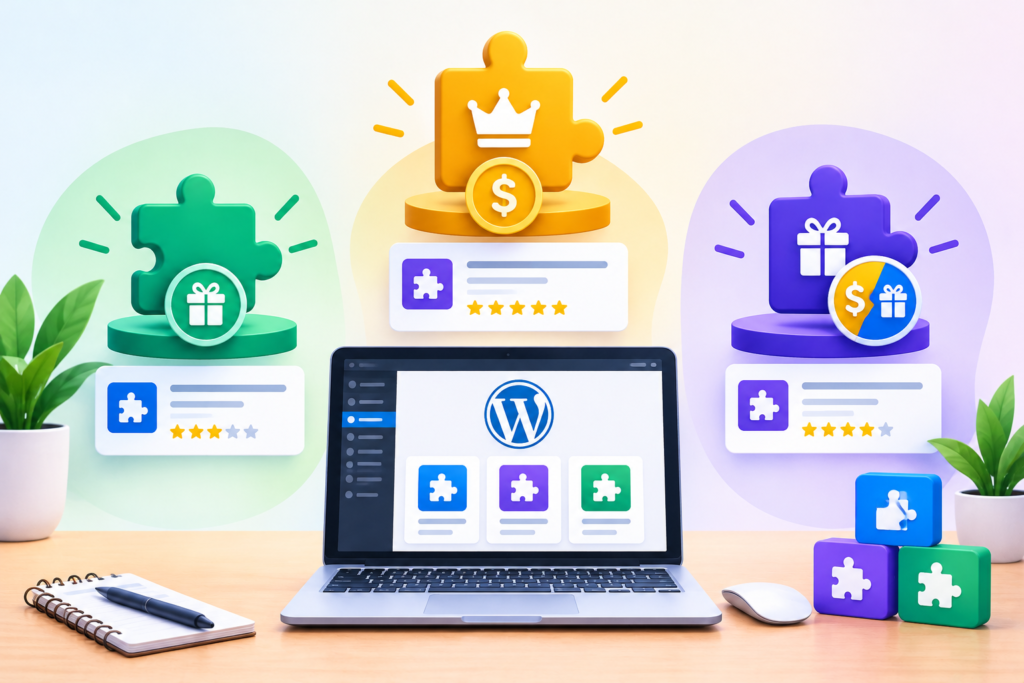
WordPress plugins are available under several pricing models, and understanding the differences can help website owners make cost-effective decisions. Free plugins can provide powerful functionality for everyday requirements, including content optimization, contact forms, basic security, and image compression. Many are maintained by experienced developers and receive regular improvements. However, free availability does not automatically guarantee suitability, ongoing support, or compatibility with every website. Review the available features and documentation carefully before relying on a free extension for an essential business process.
Premium plugins generally provide additional capabilities, professional support, advanced integrations, or features designed for more demanding requirements. For example, an e-commerce business might need advanced shipping rules, subscription management, or automated reporting that is unavailable in a free edition. Freemium plugins combine a free version with paid upgrades, allowing users to begin with basic functionality and expand when necessary. Before purchasing a licence, identify the specific limitation that the paid version will solve. Compare the total cost, including annual renewals, additional licences, premium add-ons, and any external service fees. A premium licence is worthwhile when its additional benefits justify the cost, not simply because it carries a higher price.
Long-term affordability also depends on maintenance requirements and the consequences of choosing the wrong product. A low-cost plugin that frequently breaks other functionality can create greater expenses than a well-supported alternative. Similarly, a premium plugin with extensive features may be unnecessary for a small website that needs only one basic capability. Review the renewal policy, update access, support duration, refund terms, and conditions for using the plugin on multiple websites. Keep records of purchases and licence keys in a secure location, and assign renewal responsibility to an appropriate administrator. For business-critical functionality, consider the cost of downtime if the plugin becomes unavailable or its developer stops maintaining it. The best financial decision balances functionality, reliability, support, security, and total ownership cost rather than focusing exclusively on the initial price.
Building a Lean and Compatible WordPress Plugin Stack
A well-planned plugin stack includes the smallest practical collection of extensions needed to support the website’s requirements. Installing more plugins does not automatically make a website better, and reducing the number of plugins is not, by itself, a guarantee of improved performance or security. A single poorly designed plugin can create more problems than several lightweight, well-maintained extensions. The objective is to avoid unnecessary functionality, overlapping responsibilities, and complicated dependencies while preserving the features that visitors and administrators genuinely need.
Begin by categorizing installed plugins according to their primary purposes. Typical categories include search engine optimization, security, backups, caching, forms, analytics, accessibility, and e-commerce. For each plugin, document its owner, purpose, critical settings, dependencies, and consequences if it stops working. Identify duplicated functionality, such as two plugins independently generating sitemaps or multiple caching systems attempting to control the same resources. Overlapping features can cause inconsistent output, duplicated processing, or confusing configuration. However, some plugins intentionally work together, so do not remove an extension merely because another product offers a similar feature. Verify how each tool is used before making changes.
Compatibility should be evaluated across WordPress core, the active theme, PHP, the database environment, and other installed extensions. A plugin may work correctly in isolation but fail when combined with a particular theme or payment integration. Before introducing a new extension or removing an existing one, test representative user journeys on a staging site. Check administrative tasks as well as the public-facing website, since some conflicts affect only the editor, dashboard, or scheduled processes. Record baseline performance and note any changes after installation. If you discover a conflict, isolate the responsible component rather than disabling multiple plugins at once without a plan. Regularly review the plugin inventory and remove extensions that are genuinely unnecessary, after backing up the site and checking whether they retain data or provide dependencies. This disciplined approach creates a plugin environment that is easier to understand, troubleshoot, and maintain as the website grows.
Managing WordPress Plugin Updates and Version Control
Keeping WordPress plugins updated is an essential part of maintaining a secure, stable, and functional website. Developers release updates to correct software defects, address security vulnerabilities, improve compatibility, and introduce new capabilities. An outdated plugin may continue to work for some time, but it can gradually become incompatible with newer versions of WordPress, PHP, or other extensions. For business websites, these problems can affect lead generation, checkout functionality, customer accounts, and other important processes. A reliable update strategy therefore needs to balance the benefits of installing improvements promptly with the need to protect existing website functionality.
Before updating a plugin, review the available release information and determine whether the update includes security fixes, compatibility changes, or significant functional modifications. Create a fresh backup of the website’s files and database, and test important updates on a staging environment whenever possible. This is particularly important for plugins that control payments, memberships, page layouts, caching, or database operations. Confirm that the staging environment resembles the live website closely enough to reveal likely compatibility problems. Apply the update, inspect the administrator dashboard, and test critical visitor journeys before deploying the change to production. For urgent security updates, assess the risk of delaying installation and use an expedited but controlled procedure.
Version management should also include documentation and recovery planning. Maintain a record of plugin versions, update dates, and any configuration changes made during maintenance. If an update introduces a problem, use the documented rollback or recovery procedure rather than repeatedly experimenting on the live website. Restoring an older plugin version can reintroduce a security vulnerability, so rollback should be a temporary corrective measure followed by investigation. Where supported, use automated updates selectively for trusted, lower-risk extensions, while retaining appropriate backups, monitoring, and notification procedures. WordPress provides useful guidance on managing plugins and updating a website safely. A disciplined update process helps prevent avoidable downtime and ensures that plugin maintenance remains a predictable part of website operations.
Securing WordPress Plugins Against Vulnerabilities
Plugin security is a major consideration because extensions can introduce additional code, permissions, data access, and external connections into a WordPress website. A vulnerability in an installed plugin may allow an attacker to access information, manipulate website content, upload malicious files, or gain privileges that should not be available to them. The level of risk depends on the vulnerability, the plugin’s functionality, the website’s configuration, and the privileges required to exploit the issue. Even a reputable plugin can develop a security weakness, which is why continuous maintenance matters more than relying on a one-time security check.
Start by installing plugins only from trusted sources and reviewing their maintenance history before activation. Keep extensions updated, remove unused plugins after checking their dependencies and retained data, and restrict administrator access to people who genuinely need it. Use strong, unique passwords and enable multifactor authentication where available. Avoid sharing administrator accounts, and assign users the minimum permissions required for their responsibilities. If a plugin processes uploads, customer information, or payment-related data, examine its security documentation and configuration options carefully. Do not assume that a security plugin alone can compensate for vulnerable extensions, insecure hosting, weak credentials, or an unmaintained WordPress installation.
A practical security process also requires monitoring and incident preparation. Subscribe to relevant security announcements, investigate warnings from reputable vulnerability databases, and prioritize updates that address confirmed issues affecting installed software. If a plugin is reported as vulnerable, verify the affected versions and follow the developer’s recommended mitigation steps. If a suitable fix is unavailable, consider disabling the affected functionality and replacing the plugin, taking account of the operational consequences. Maintain off-site backups and test restoration procedures so that the website can recover if an incident occurs. The official WordPress Hardening guidance explains measures that help strengthen WordPress installations. Security should be treated as an ongoing responsibility involving software, access controls, hosting, monitoring, and recovery planning rather than a single plugin installation.
Optimizing Website Performance and Plugin Efficiency
WordPress plugins can influence website speed through their use of server resources, database queries, scripts, stylesheets, external requests, and background processing. A plugin that loads unnecessary assets across every page may increase page weight, while an extension that performs expensive database operations may slow down dynamic requests. Other plugins introduce third-party tracking scripts or external API calls that increase dependency on services outside the website owner’s control. However, performance depends on the quality of the implementation, traffic levels, hosting environment, configuration, and the type of functionality involved. The number of installed plugins alone is not a reliable measurement of website speed.
Begin performance optimization by establishing a baseline. Measure representative pages using tools such as PageSpeed Insights and review real-user performance information through Core Web Vitals. Examine loading behaviour on mobile and desktop, paying particular attention to Largest Contentful Paint, Interaction to Next Paint, and Cumulative Layout Shift. Test important pages such as the homepage, blog articles, product listings, and checkout rather than relying on a single page score. Where possible, compare results before and after a plugin change under similar conditions. This helps distinguish actual improvements from fluctuations caused by caching, network conditions, or external services.
Once the main bottlenecks are identified, make targeted improvements. Remove unnecessary overlapping functionality, configure caching appropriately, optimize images, and reduce unnecessary scripts or external requests. If a plugin provides options to load assets only on relevant pages, enable them carefully and test all affected features. Database optimization may also help when supported by evidence, but deleting records or running aggressive cleanup operations without a backup can damage functionality. Avoid installing several optimization plugins that attempt to control the same caching or asset-processing functions. After every significant change, retest performance and verify that forms, interactive elements, and transactions continue to work correctly. Google explains how page experience and user-focused performance measurements relate to website quality in its web performance documentation. The objective is to create a responsive, reliable experience, not merely to achieve a high laboratory score.
Diagnosing Plugin Conflicts and Compatibility Problems
Plugin conflicts occur when two or more components interact in a way that produces unexpected behaviour. For example, a caching plugin may interfere with dynamically generated content, a security extension may block a legitimate API request, or a form plugin may conflict with JavaScript loaded by the active theme. Problems can also arise when a plugin depends on a particular PHP version, library, WordPress feature, or third-party service. Common symptoms include broken layouts, missing buttons, failed form submissions, error messages, incomplete updates, and problems in the WordPress administration area.
The first step in troubleshooting is to record what happened and when it began. Identify recent changes, including plugin updates, theme modifications, hosting migrations, PHP upgrades, and configuration changes. Review available error logs and diagnostic messages before changing multiple settings. If the problem appeared immediately after a plugin update, investigate that release and its compatibility requirements. Reproduce the issue in a staging environment wherever possible, then deactivate or enable components in a controlled sequence to isolate the cause. For a production website, use a maintenance window or suitable troubleshooting method to minimize the risk of disrupting visitors. A staging copy should be protected appropriately, especially when it contains customer information or access to payment systems.
Once the likely cause is identified, determine whether the solution is a configuration adjustment, a compatible update, a replacement plugin, or assistance from a developer. Avoid editing plugin core files because future updates may overwrite changes and make the site harder to maintain. If a custom modification is necessary, implement it through an appropriate extension mechanism or a maintained custom plugin. Test the correction across relevant browsers, devices, and user roles. Also check that the fix has not introduced secondary problems elsewhere. The WordPress debugging documentation explains how to investigate errors using available debugging features. Good troubleshooting depends on gathering evidence, isolating variables, and verifying the result rather than repeatedly changing settings without a clear diagnosis.
Backups, Recovery Planning, and Safe Plugin Removal
A reliable backup strategy protects a WordPress website against failed updates, plugin conflicts, accidental deletions, database corruption, and other operational problems. A complete recovery plan generally needs both website files and the database because these components contain different parts of the site’s functionality. Files may include WordPress core files, themes, plugins, uploads, and configuration information, while the database stores posts, pages, user records, settings, orders, and other structured content. The exact backup scope depends on the website’s architecture, but an incomplete backup may not be sufficient to restore a working installation.
Choose a backup schedule that reflects how frequently the website changes and how much data loss the business can tolerate. A frequently updated online store may need more frequent database backups than a static brochure website. Store backup copies separately from the live hosting environment and protect them with appropriate access controls. Retain multiple recovery points so that an unnoticed problem does not overwrite the only usable backup. Before performing a risky plugin update, confirm that a recent backup completed successfully. Periodically test restoration in a separate environment because a backup that has never been restored is not a proven recovery solution. The official WordPress backup documentation provides guidance on protecting website data.
Plugin removal requires similar care. Deactivating a plugin usually stops its functionality, but it does not necessarily remove its database tables, settings, uploaded files, or records. Some extensions preserve data to support later reactivation, while others provide a specific uninstall procedure. Before deletion, check whether other plugins depend on the extension and determine whether its data must be retained for compliance, reporting, or future migration. Export important information when appropriate, create a backup, and remove the plugin using the standard WordPress interface or the developer’s documented process. Afterwards, inspect the website, verify that essential features still work, and check for unnecessary scheduled tasks or retained resources. Avoid manually deleting database tables unless you understand their purpose and have a reliable recovery plan. Careful backup and removal practices reduce the risk of permanent data loss while keeping the plugin environment manageable.
Monitoring Plugin Health and Establishing Long-Term Maintenance
Plugin management should continue after installation and initial configuration. A plugin that works correctly today may encounter new compatibility requirements, security issues, changing external APIs, or unexpected performance problems later. Regular monitoring allows website owners to identify warning signs before they develop into significant failures. Important indicators include failed scheduled tasks, repeated PHP errors, unusual database activity, unsuccessful form submissions, changes in page speed, and failures in external integrations. The relevant indicators depend on the plugin’s purpose, so monitoring should be designed around the website’s critical functions rather than applied as a generic checklist.
Establish a recurring maintenance schedule that covers plugin inventory reviews, update checks, backup verification, performance testing, and security assessments. Weekly reviews may be suitable for frequently updated business websites, while more detailed monthly or quarterly reviews can examine dependencies, licensing, unused extensions, and long-term maintenance risks. These intervals should be adjusted according to the site’s traffic, security exposure, transaction volume, and operational importance. Configure alerts where appropriate, but avoid generating so many notifications that important warnings become easy to miss. Document who is responsible for responding to each type of alert and what steps should follow when a problem is identified.
Maintenance records make this process more effective. Maintain an inventory of installed plugins, their purposes, current versions, update sources, licence details, and important dependencies. Record significant changes and note the results of post-update testing. For critical extensions, document recovery procedures and identify a suitable alternative if the product becomes unavailable or unsupported. If a website handles payments, subscriptions, bookings, or other essential transactions, monitor those workflows directly rather than assuming that a successful homepage load means the entire site is healthy. Periodically review whether the plugin stack still meets business requirements and remove unnecessary complexity through controlled changes. Consistent monitoring and documentation make maintenance more predictable, improve troubleshooting, and help website owners make informed decisions about upgrades and replacements.
Common Mistakes to Avoid When Managing WordPress Plugins
One of the most common mistakes is installing plugins without defining a specific requirement. Website owners may add extensions because they appear popular, promise quick results, or offer features that seem useful in theory. Over time, this behaviour creates overlapping functionality, confusing settings, additional maintenance work, and potential compatibility problems. The solution is to establish a clear purpose for every plugin and assess whether its benefits justify its operational cost. Before installation, check whether the same capability already exists in the theme, WordPress core, or another extension. Maintain a documented inventory and periodically review whether each plugin is still necessary.
Another significant mistake is neglecting updates or installing them without preparation. Outdated extensions can expose known vulnerabilities, while untested updates may disrupt important website functions. Neither extreme is appropriate: ignoring every update creates unnecessary risk, and blindly applying every change to a business-critical website can introduce avoidable downtime. Establish a risk-based update process, create backups, test major changes in staging, and verify critical workflows after deployment. Website owners should also avoid downloading plugins from suspicious sources, sharing administrator credentials, or assuming that a security plugin will automatically protect every component of the website. Reliable security requires trusted software, restricted access, timely maintenance, and a workable recovery plan.
Poor troubleshooting and careless plugin removal can create additional problems. Deactivating many plugins simultaneously may make it difficult to identify the actual cause of an error, while deleting database records without understanding their purpose can permanently remove important information. Editing plugin core files may also create fragile customizations that disappear during updates. Instead, record the symptoms, investigate logs, isolate changes systematically, and test corrections in a controlled environment. Before removing an extension, check its dependencies, retained data, and uninstall instructions. Finally, avoid judging performance by plugin count alone or relying exclusively on automated scores. Measure real website behaviour, test essential user journeys, and make evidence-based improvements. The most reliable plugin management strategy combines deliberate selection, appropriate security controls, controlled updates, tested backups, and ongoing monitoring.
Best Practices Summary for WordPress Plugin Management
Successful WordPress plugin management begins with selecting tools that solve genuine problems and support measurable website goals. Evaluate each plugin’s functionality, update history, documentation, compatibility, support arrangements, and security implications before installation. Choose reputable distribution sources and avoid extensions that have unclear ownership, suspicious download origins, or unresolved serious vulnerabilities. Consider the long-term cost of licences, maintenance, performance, and possible replacement. A small, carefully managed plugin stack is generally easier to maintain than a collection of extensions installed without a clear purpose, although quality and implementation remain more important than the raw number of plugins.
Security and reliability should be built into the management process. Keep WordPress core, themes, and plugins maintained, apply security fixes according to their urgency, and limit administrative access to authorized users. Use strong authentication, protect credentials, and review the permissions required by extensions that process sensitive information. Maintain backups of files and databases, store recovery copies separately, and test restoration procedures periodically. Before significant changes, use staging to assess compatibility and identify unexpected effects. After deploying an update, verify essential functions such as login, forms, search, payments, and other workflows that matter to the business. Record changes and maintain a clear recovery procedure for critical problems.
Performance and maintainability require ongoing attention as the website evolves. Monitor real user experience, investigate slow pages, reduce duplicated functionality, and configure caching or optimization tools carefully. Remove genuinely unnecessary plugins only after checking dependencies and retained data. Review support channels and security announcements for important extensions, and develop replacement plans for products that become unsupported. For complex websites, assign responsibility for updates, monitoring, incident response, and licence renewals to appropriate team members. Use the official WordPress documentation as a reference for routine administration, and consult the relevant developer documentation when advanced troubleshooting is necessary. A sustainable plugin strategy does not aim to eliminate every possible risk; it establishes repeatable processes that reduce avoidable failures and support long-term website stability.
Frequently Asked Questions
1. What are WordPress plugins, and why are they important?
WordPress plugins are software extensions that add functionality to a WordPress website. They can provide features such as contact forms, search engine optimization tools, caching, backups, spam protection, analytics, and e-commerce capabilities. Plugins allow website owners to customize their websites without developing every feature from scratch. Their importance comes from this flexibility, but each extension also introduces potential maintenance requirements and dependencies. Choosing reliable plugins and keeping them properly configured helps ensure that the website remains functional, secure, and manageable.
2. How many WordPress plugins should a website have?
There is no universally correct number of WordPress plugins for every website. A simple business website may need only a handful, while a complex online store may require many extensions for products, payments, shipping, memberships, and reporting. The quality, compatibility, and resource usage of each plugin matter more than the total count. Website owners should remove unnecessary or duplicated functionality, monitor performance, and ensure that essential extensions remain supported. The goal is to maintain the smallest practical collection that meets the website’s requirements reliably.
3. Are free WordPress plugins safe to use?
Free WordPress plugins can be safe and reliable when they come from trusted sources and are maintained appropriately. However, free availability does not guarantee that a plugin is secure, compatible, or suitable for every website. Review its update history, developer information, documentation, support discussions, and known security issues before installing it. Avoid downloading extensions from suspicious websites or using modified packages from unauthorized sources. Keep the plugin updated, configure its permissions carefully, and monitor its behaviour after installation.
4. How often should WordPress plugins be updated?
Plugins should be reviewed regularly, and updates should be applied according to their importance, compatibility, and security implications. Confirmed security fixes may require urgent attention, whereas major feature updates may benefit from staging tests before deployment. Before making significant changes, create a backup and verify that it can be restored. After updating, test important website functions and investigate any errors. Automated updates can be appropriate for trusted plugins, but they should be supported by monitoring, notifications, and a recovery procedure.
5. Can WordPress plugins slow down a website?
Yes. Some plugins increase page loading time by adding scripts, stylesheets, database queries, external requests, or resource-intensive processing. However, not every plugin has a meaningful performance impact, and removing extensions without evidence may not improve speed. Use performance testing tools to identify actual bottlenecks and compare results before and after changes. Review unnecessary functionality, duplicated caching systems, and third-party integrations. After optimization, verify that interactive features and important user journeys continue to work correctly.
6. What should I do if a WordPress plugin causes an error?
Begin by recording the error message, the affected page, and any recent updates or configuration changes. Check relevant error logs and reproduce the issue in a staging environment if possible. Isolate the suspected plugin or compatibility issue systematically instead of changing many components at once. If an update caused the problem, review its release information and investigate a suitable correction. Deactivation or rollback may help in some situations, but restoring an older vulnerable version should not become a permanent solution. For critical websites, obtain technical assistance before making changes that could affect transactions or customer data.
7. Is it safe to delete inactive WordPress plugins?
Deleting inactive plugins is often appropriate when they are no longer needed, but check their dependencies and data-retention behaviour first. Some extensions preserve settings or database records after deactivation, while others provide specific uninstall procedures. Back up the website before removing an extension, especially if it has handled orders, customer records, memberships, or other important information. Use the normal WordPress deletion process or the developer’s documented instructions, then verify that essential website functions remain intact. Do not manually delete database tables unless you understand their purpose and have a reliable recovery plan.
8. How can I choose the best WordPress plugins for my business?
Start by identifying the business problem the plugin needs to solve and the outcome you expect. Compare suitable options based on functionality, compatibility, maintenance history, security, documentation, support, licensing, and total ownership cost. Review whether the extension accesses personal information, connects to external services, or introduces important dependencies. Test shortlisted plugins in a staging environment where possible and evaluate their effects on performance and user experience. The best choice is the one that meets your requirements reliably without introducing unnecessary complexity or operational risk.
Conclusion
WordPress plugins can transform a basic website into a powerful platform for publishing content, generating leads, selling products, and managing customer interactions. However, achieving these benefits requires more than installing extensions and leaving them unattended. Website owners need a structured approach to evaluating plugin quality, configuring features correctly, applying updates, monitoring security, and testing compatibility. These practices help reduce unnecessary complexity while protecting the website’s functionality and user experience.
A successful plugin strategy should also include performance measurement, reliable backups, documented recovery procedures, and regular reviews of installed extensions. When problems occur, evidence-based troubleshooting and controlled testing are more effective than making multiple changes without a clear diagnosis. As business requirements evolve, reviewing the plugin stack helps ensure that each extension continues to provide meaningful value. Security and maintenance responsibilities should remain ongoing priorities rather than tasks performed only after a website experiences a problem.
At WP Maintenance Service, the aim is to help website owners understand the practical steps involved in maintaining a dependable WordPress environment. By following the recommendations in this guide, you can make more informed plugin decisions, improve operational consistency, and reduce avoidable maintenance risks. Whether you manage a small business website, a growing publication, or a complex WooCommerce store, a carefully planned approach to WordPress plugin management can support long-term reliability and growth. Start by reviewing your existing plugins, identifying unnecessary risks, and creating a maintenance process that fits your website’s actual needs.
Want to Implement This Easily?
Use the following prompt to turn the recommendations in this article into a practical implementation plan for your website.
You are an expert WordPress plugin consultant. Based on the blog post titled “WordPress Plugins”, provide a step-by-step, practical implementation guide for selecting, installing, configuring, securing, optimizing, and maintaining WordPress plugins.
Include the following:
- Website assessment: Identify the website’s purpose, essential features, technical environment, existing plugins, and business priorities.
- Plugin selection: Explain how to evaluate plugin quality, compatibility, update history, documentation, security, support, and licensing costs.
- Installation and configuration: Provide safe installation procedures, staging recommendations, backup requirements, and configuration checks.
- Security: Explain how to identify vulnerable plugins, manage permissions, protect credentials, apply security updates, and monitor risks.
- Performance optimization: Recommend appropriate testing tools, methods for identifying inefficient plugins, and ways to reduce unnecessary scripts, database queries, and duplicated functionality.
- Compatibility testing: Explain how to diagnose plugin conflicts, investigate error logs, test changes, and resolve issues safely.
- Backups and recovery: Create a backup schedule, outline restoration procedures, and explain how to remove unwanted plugins without losing important data.
- Maintenance schedule: Develop a weekly, monthly, and quarterly checklist for updates, monitoring, security reviews, performance checks, and plugin inventory management.
- Common mistakes: Identify practical mistakes to avoid and explain how to prevent them.
- Advanced recommendations: Include automation, staging workflows, version tracking, monitoring, documentation, and contingency planning.
For each step, specify the objective, recommended tools, implementation instructions, expected outcome, verification method, and potential risks. Distinguish essential actions from optional improvements. Use official WordPress documentation and relevant authoritative technical resources wherever appropriate. Do not invent website configurations, plugin versions, test results, or technical requirements. Clearly identify any information that must be checked before implementation.
Assume the reader wants to implement the recommendations effectively while maintaining website security, performance, compatibility, and long-term reliability.
Call to Action: Want our help implementing this? Just reach out to us via our website contact form: https://www.wpmaintenanceservice.com/contact-us/