
Learn how to fix WordPress issues quickly and effectively with this complete guide. Discover expert troubleshooting methods, plugin fixes, performance solutions, security tips, and best practices to keep your WordPress website running smoothly.
Introduction
Running a WordPress website can be incredibly rewarding, but even the best websites eventually face technical problems. From slow loading speeds and plugin conflicts to white screen errors and broken layouts, WordPress issues can disrupt your website’s performance, damage user trust, and negatively impact search engine rankings. Website owners often struggle to identify the real cause of these problems, which leads to wasted time, reduced conversions, and lost opportunities.
At WP Maintenance Service, we understand how frustrating WordPress technical problems can become for businesses, bloggers, eCommerce stores, and agencies. Whether your site experiences login issues, update failures, database errors, or performance bottlenecks, finding the right troubleshooting process is essential. A proactive approach to WordPress maintenance helps reduce downtime, improve security, and deliver a better experience for visitors.
This guide explores practical ways to identify, troubleshoot, and resolve common WordPress problems while following modern website management practices. You will also learn how preventive maintenance strategies can reduce future disruptions and improve long-term website stability. By understanding the most common causes of website failures, you can make informed decisions and protect your online presence.
Understanding Why WordPress Issues Happen
WordPress is one of the most flexible content management systems available, but its flexibility can also create complications. Since WordPress depends on themes, plugins, hosting environments, databases, and server configurations, even a minor incompatibility may trigger significant website problems. Understanding the root causes of WordPress issues is the first step toward building a stable and reliable website.
One of the most common reasons websites experience technical problems is plugin conflicts. Website owners often install multiple plugins to extend functionality, but not every plugin works perfectly together. After updates, compatibility issues may occur, resulting in broken features, layout problems, or even website crashes. Outdated themes can create similar problems because developers regularly update WordPress core files to improve security and performance.
Another major cause of WordPress errors involves poor hosting environments. Cheap hosting plans often limit server resources, causing slow website speeds, database interruptions, and memory exhaustion problems. A hosting provider with inadequate optimization may also struggle to handle traffic spikes, resulting in downtime during peak business periods.
Security vulnerabilities are another critical factor. Weak passwords, outdated software, and insecure plugins increase the risk of malware infections and unauthorized access. According to Google Search Central, website quality and trustworthiness significantly influence user experience and search performance. Maintaining website stability is not only important for visitors but also for long-term SEO performance.
Understanding these causes allows website owners to diagnose problems more effectively. Instead of reacting emotionally when something breaks, you can follow a structured troubleshooting process and resolve issues faster.
Common WordPress Issues Website Owners Face
WordPress websites can experience many different technical problems, and each issue requires a unique troubleshooting approach. Some problems affect user experience immediately, while others remain unnoticed until website traffic or revenue begins to decline.
One of the most frustrating problems is the White Screen of Death (WSOD). This issue occurs when visitors see a blank white screen instead of website content. It often happens due to PHP memory limits, coding conflicts, or faulty plugin installations. Because error messages are sometimes hidden, troubleshooting requires enabling WordPress debug mode or temporarily disabling plugins to identify the root cause.
Login-related problems are another common concern. Many website owners become locked out of their admin dashboard due to incorrect login credentials, corrupted login pages, plugin conflicts, or security restrictions. In some cases, cache-related issues may prevent access even after entering the correct password.
Website speed problems also affect thousands of WordPress websites. Slow-loading pages often result from oversized images, poor hosting performance, excessive plugins, or unoptimized databases. According to Google PageSpeed Insights, page performance plays a major role in user satisfaction and search visibility. A slow website increases bounce rates and reduces visitor engagement.
Broken layouts, missing images, failed updates, database connection errors, redirect loops, and malware infections are also widespread problems. Since WordPress relies on multiple moving parts, identifying the exact source of the issue becomes essential before implementing fixes.
The good news is that most WordPress problems can be resolved systematically. Instead of guessing randomly, website owners should approach troubleshooting methodically to avoid making issues worse.
How to Troubleshoot WordPress Problems the Right Way
Troubleshooting WordPress issues effectively requires patience, preparation, and a structured process. Many website owners make the mistake of immediately changing multiple settings without understanding the original cause, which often complicates the situation further. A strategic troubleshooting method helps reduce downtime and prevents accidental damage.
The first step in troubleshooting is creating a full website backup. Before making changes to themes, plugins, or server configurations, always ensure that your website files and database are protected. Reliable backups provide a safety net if something goes wrong during troubleshooting. A restoration point can save countless hours of frustration.
Next, identify when the problem started. Ask yourself important questions. Did the issue appear after a plugin update? Was a new theme installed recently? Did hosting settings change unexpectedly? Identifying recent modifications helps narrow down possible causes and speeds up diagnosis.
Temporarily disabling plugins is another highly effective troubleshooting technique. Plugin conflicts are responsible for many WordPress problems. By deactivating plugins one at a time and testing functionality, website owners can pinpoint problematic software more efficiently. Similarly, switching to a default WordPress theme can help identify whether design-related conflicts are causing the issue.
Using debugging tools also improves troubleshooting accuracy. WordPress debug mode helps display hidden errors and warnings that are otherwise invisible. Additionally, website performance tools and error monitoring systems can reveal deeper technical problems affecting functionality.
Rather than rushing into fixes, a careful and systematic troubleshooting process increases success rates and minimizes unnecessary complications.
Plugin Conflicts and How to Resolve Them
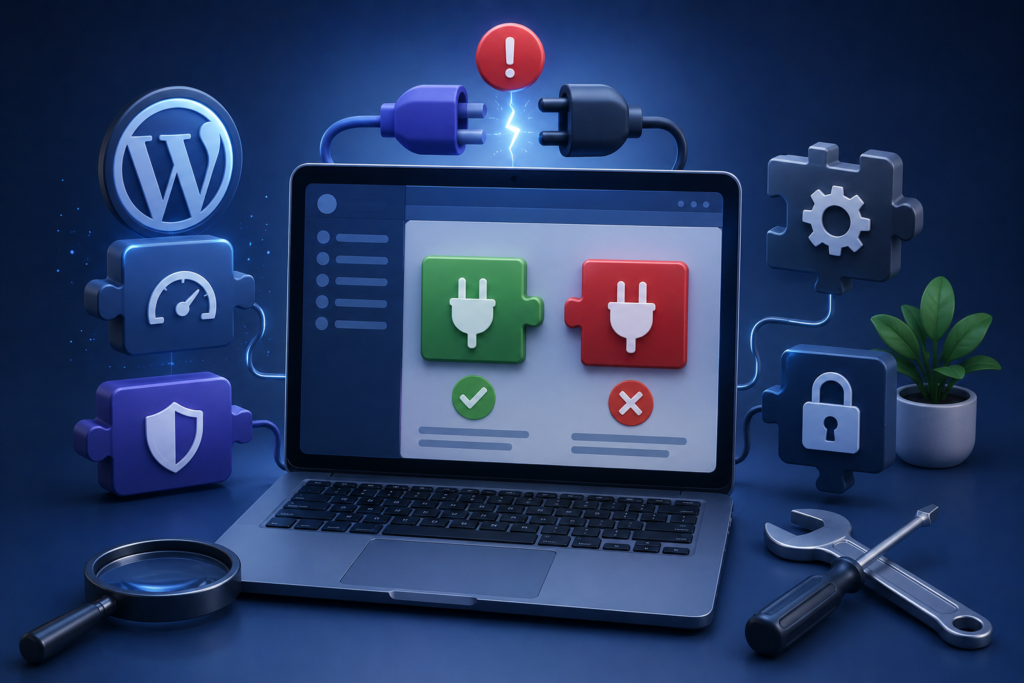
Plugins add valuable functionality to WordPress websites, but they are also among the leading causes of website issues. Since plugins are developed by different creators with varying coding standards, compatibility conflicts sometimes occur. Even a well-designed website can suddenly experience problems after installing or updating a plugin.
A common sign of plugin conflict includes broken layouts, missing website functionality, unexpected error messages, or pages refusing to load correctly. Some plugins may interfere with caching systems, while others create conflicts with themes or WordPress core updates.
The safest way to diagnose plugin conflicts involves deactivating all plugins temporarily. Once disabled, reactivate them individually while testing website functionality after each activation. This process helps identify which plugin is causing the issue. Although time-consuming, this method remains one of the most reliable troubleshooting strategies.
Website owners should also prioritize plugin quality over quantity. Installing unnecessary plugins increases website complexity and raises security risks. Before installing new tools, evaluate developer reputation, update frequency, compatibility history, and customer reviews. Regular plugin maintenance helps minimize long-term problems.
It is also important to remove abandoned plugins that no longer receive developer support. Unsupported plugins create security vulnerabilities and compatibility issues over time. Following best practices for plugin management helps improve website stability and performance while reducing technical disruptions.
Fixing WordPress Website Speed and Performance Problems
Website speed directly affects user experience, engagement, and SEO performance. A slow-loading website frustrates visitors and increases abandonment rates, making performance optimization an essential part of WordPress maintenance. Even a visually attractive website may fail to convert visitors if performance problems remain unresolved.
Large image files are one of the most common causes of poor website performance. High-resolution images consume server resources and increase page loading times. Compressing images and using modern formats significantly improves website responsiveness without sacrificing visual quality.
Poor hosting infrastructure can also slow down WordPress websites. Shared hosting environments sometimes struggle to handle traffic demands, causing lagging response times and server instability. Investing in optimized WordPress hosting can improve speed, uptime reliability, and overall website health.
Caching systems play an important role in performance optimization. Caching reduces server workload by storing temporary versions of website pages for faster loading. Database optimization, code minification, and content delivery networks further improve website performance by reducing unnecessary server requests.
According to Google Search Essentials, website usability and performance contribute to a positive search experience. Improving WordPress speed benefits both users and search visibility.
Fixing WordPress Login and Admin Dashboard Problems
WordPress login issues are among the most frustrating website problems because they prevent website owners from accessing the admin panel. Losing access to your dashboard can interrupt updates, delay content publishing, and create unnecessary downtime. Fortunately, most login problems can be diagnosed and fixed using a structured troubleshooting approach.
One of the most common causes of login failure is incorrect username or password information. Website owners frequently forget credentials or experience password conflicts after security plugin changes. Resetting passwords through the login page or database management tools often resolves this issue quickly. Browser-related problems can also affect login functionality. Clearing browser cache and cookies may help eliminate outdated session data interfering with authentication.
Plugin conflicts are another major reason WordPress login pages stop functioning correctly. Security plugins, redirect plugins, or caching tools sometimes accidentally block legitimate administrator access. Temporarily disabling plugins through file management systems can help restore dashboard access. Additionally, corrupted .htaccess files may trigger redirect loops that prevent successful logins.
Website owners should also strengthen login security to reduce future problems. Using strong passwords, enabling two-factor authentication, and limiting login attempts significantly improve website protection. Trusted website security guidance from Google Safe Browsing emphasizes proactive website protection to reduce cyber risks and improve trustworthiness.
By maintaining secure login practices and monitoring plugin activity carefully, WordPress administrators can reduce the likelihood of future dashboard access issues.
How to Fix WordPress Update Errors Safely
WordPress updates improve website security, compatibility, and performance, but update-related errors sometimes create serious disruptions. Failed updates may break layouts, disable plugins, or temporarily crash websites. Learning how to manage updates safely helps reduce risks while maintaining website stability.
One common issue occurs when WordPress core updates become interrupted during installation. A weak internet connection, insufficient hosting resources, or server timeout may prevent updates from completing successfully. This often places websites in maintenance mode, leaving visitors unable to access content.
Plugin and theme update conflicts also occur frequently. Developers release updates to improve compatibility, but outdated themes or unsupported plugins sometimes create unexpected errors after installation. Website owners should always verify compatibility before applying major updates.
Creating backups before updating is one of the most important preventive measures. A reliable backup allows website restoration if unexpected issues appear. Testing updates on staging environments also reduces risk because changes can be verified safely before deployment.
Following official guidance from WordPress Documentation helps website owners understand recommended update procedures and minimize technical complications.
Rather than avoiding updates entirely, website owners should adopt safe update strategies that improve security and long-term website reliability.
Solving Database Connection Errors in WordPress
Database connection problems can instantly make a website inaccessible. When WordPress cannot communicate with its database, visitors may see messages such as “Error Establishing a Database Connection.” Since the database stores website content, settings, and user information, database interruptions can significantly impact operations.
One common cause of database errors involves incorrect login credentials inside the WordPress configuration file. If hosting settings change or credentials become corrupted, WordPress may fail to connect properly. Reviewing configuration details often resolves authentication-related issues.
Server overload is another possible cause. Hosting environments with limited resources sometimes struggle to maintain stable database performance during high traffic periods. Slow response times, server interruptions, or excessive plugin activity may overload database systems.
Database corruption can also occur after failed updates, malware infections, or hosting interruptions. Repair tools provided within WordPress or hosting dashboards may help resolve corrupted tables and restore functionality.
Preventive database maintenance reduces future disruptions. Removing unnecessary data, optimizing tables, and scheduling regular backups improve performance and stability over time. A healthy database contributes to faster website performance and reduced downtime risks.
Website owners who proactively monitor database health are less likely to experience unexpected outages or severe performance problems.
Fixing Broken Layouts and Theme Compatibility Issues
Website appearance problems can damage user trust and reduce conversion opportunities. Broken layouts, missing design elements, distorted pages, and responsive issues often occur due to theme conflicts or compatibility problems. Even small visual disruptions can negatively affect credibility.
Theme-related issues commonly appear after updates. New WordPress versions occasionally create compatibility conflicts with outdated themes. Older themes may contain deprecated coding practices that no longer function properly after updates.
Plugin conflicts frequently contribute to layout problems as well. Visual builder plugins, CSS customization tools, or caching systems sometimes interfere with theme functionality. Testing website behavior with default WordPress themes helps isolate design-related problems.
Custom code modifications can also create display issues. Small CSS or PHP errors may break sections of a website unexpectedly. Website owners should carefully review recent changes if design problems suddenly appear.
Responsive optimization is equally important. Modern websites must function correctly across desktops, tablets, and mobile devices. Broken mobile layouts significantly reduce user experience and can impact search visibility.
Keeping themes updated, limiting unnecessary design customizations, and testing website responsiveness regularly helps maintain professional website presentation and prevent layout disruptions.
Preventing Malware and Security Problems in WordPress
Security threats remain one of the biggest challenges facing WordPress website owners. Malware infections, hacking attempts, spam injections, and unauthorized access can compromise sensitive information, reduce trust, and damage SEO performance. Prevention is always better than recovery.
Weak passwords remain one of the leading causes of WordPress security breaches. Attackers often target websites using predictable login credentials. Strong passwords and multi-factor authentication provide an important first line of defense.
Outdated plugins and themes also create security vulnerabilities. Developers frequently release updates to patch vulnerabilities, meaning delayed updates increase website risk. Removing abandoned plugins further strengthens website protection.
Website monitoring tools help detect suspicious behavior early. Regular malware scans and activity monitoring reduce the chances of prolonged infections. Hosting providers with strong security systems also improve website resilience.
Following trusted recommendations from Google Search Central Security Issues Guide helps website owners identify security risks and recover from compromised website situations.
Security is not a one-time task. Continuous monitoring, updates, and preventive practices are essential for maintaining a safe WordPress environment.
Common Mistakes People Make When Fixing WordPress Issues
Many website owners unintentionally make technical problems worse while attempting repairs. One of the biggest mistakes involves making multiple changes simultaneously. When too many settings change at once, identifying the original cause becomes extremely difficult.
Ignoring backups is another costly error. Many website owners begin troubleshooting without creating restore points, increasing the risk of permanent website damage if mistakes occur during repairs.
Installing too many plugins in an attempt to “fix” issues also creates complications. Excessive plugins increase conflicts, reduce speed, and introduce security vulnerabilities. Quality matters far more than quantity.
Another frequent mistake involves delaying updates due to fear of breakage. While updates sometimes cause conflicts, avoiding them entirely creates greater security and compatibility risks over time.
Lastly, many users ignore website performance monitoring until problems become severe. Proactive maintenance significantly reduces emergency troubleshooting situations.
Understanding these mistakes helps website owners adopt smarter troubleshooting habits and avoid preventable complications.
Best Practices Summary for Fixing WordPress Issues
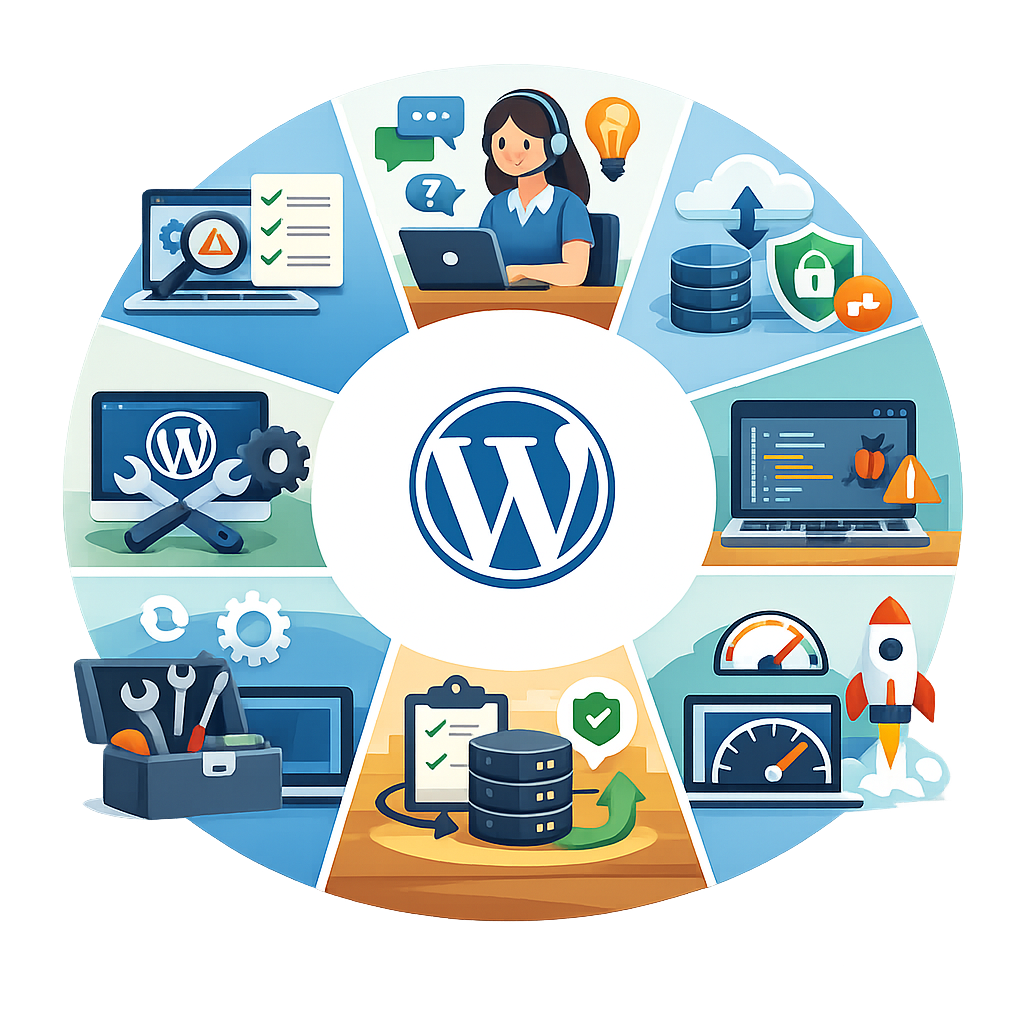
Maintaining a healthy WordPress website requires consistency, preparation, and proactive management. Creating regular backups, updating plugins responsibly, monitoring performance, and maintaining strong security practices are essential long-term habits.
Website owners should prioritize reliable hosting, avoid unnecessary plugins, and regularly test website functionality after updates. Preventive maintenance saves time, reduces downtime, and protects search visibility.
Monitoring website speed, database health, and plugin compatibility also improves user experience. Small improvements made consistently create significant long-term stability benefits.
Using trusted technical resources and professional maintenance support when needed helps reduce costly mistakes and keeps websites functioning efficiently.
Frequently Asked Questions
1. What is the most common WordPress issue?
Plugin conflicts, slow website speed, login problems, and update errors are among the most common WordPress issues website owners face.
2. Why does WordPress suddenly stop working?
Websites may stop functioning due to plugin conflicts, hosting issues, failed updates, malware infections, or server resource limitations.
3. Can I fix WordPress issues without coding knowledge?
Yes. Many WordPress problems can be resolved using troubleshooting methods such as disabling plugins, updating themes, restoring backups, or contacting hosting providers.
4. Why is my WordPress website slow?
Slow websites are often caused by oversized images, poor hosting, excessive plugins, database problems, or missing caching systems.
5. How often should I update WordPress?
Regular updates are recommended to maintain compatibility, improve security, and reduce performance issues.
6. What should I do before fixing a WordPress issue?
Always create a complete website backup before making technical changes.
7. How can I prevent WordPress problems?
Regular maintenance, secure hosting, plugin management, backups, and proactive monitoring reduce website risks significantly.
8. Should I hire professionals to fix WordPress issues?
Complex problems involving malware, databases, or severe downtime may require professional assistance to avoid further damage.
Conclusion
Fixing WordPress issues requires a balance of technical understanding, patience, and preventive maintenance. From plugin conflicts and speed problems to security risks and database errors, every website owner will eventually encounter technical challenges. The key difference between successful websites and struggling websites often comes down to how quickly and effectively those problems are resolved.
At WP Maintenance Service, we understand that maintaining a stable WordPress website is essential for business growth, customer trust, and long-term search visibility. By following proven troubleshooting strategies, maintaining regular updates, and prioritizing website health, website owners can reduce downtime and create a more reliable digital experience.
Want to Implement This Easily?
Prompt Text:
You are an expert consultant. Based on the blog post titled “Fix WordPress Issues”, provide a step-by-step, practical implementation guide. Include tools, best practices, common mistakes to avoid, and advanced tips. Assume the reader wants to implement everything discussed in this article effectively.
Call to Action:
Want our help implementing this? Just reach out to us via our website contact form: WP Maintenance Service Contact Us