
Discover how to choose, customize, optimize, and maintain WordPress themes to build a secure, responsive, accessible, and high-performing website.
Introduction
A website’s appearance influences how visitors perceive a business, navigate its content, and interact with its features. In WordPress, themes provide the foundation for that experience by controlling visual presentation, layout structures, typography, colours, templates, and various design elements. Selecting an appropriate WordPress theme is therefore more than a cosmetic decision. It affects website usability, accessibility, performance, maintainability, and the flexibility available for future development.
Whether you are launching a business website, developing a professional portfolio, publishing a blog, or operating an e-commerce store, your theme should support your objectives without introducing unnecessary technical complexity. A visually attractive design may initially appear suitable, but its long-term value depends on factors such as responsive behaviour, compatibility, update frequency, customization options, and the quality of its underlying code. Understanding these factors helps website owners make informed decisions rather than choosing a theme solely because its demo looks impressive.
At WP Maintenance Service, the focus is on helping website owners understand the technical considerations involved in maintaining reliable WordPress websites. This guide explains how WordPress themes work, how to evaluate different theme types, and how to customize their appearance while preserving usability and performance. It also explores theme security, accessibility, responsive design, compatibility testing, troubleshooting, and ongoing maintenance.
By the end of this article, you will have a practical framework for selecting and managing a WordPress theme that supports your website’s current requirements and future growth.
Understanding WordPress Themes and How They Work
A WordPress theme is a collection of files that determines how website content is presented to visitors. It establishes the visual structure of pages, posts, archives, navigation areas, headers, footers, and other interface components. While WordPress itself manages content and core functionality, the theme provides the presentation layer that connects this information to the visitor’s browsing experience.
Traditional WordPress themes commonly use PHP templates, CSS stylesheets, JavaScript, images, and configuration files. These components work together to generate pages dynamically. For example, a single-post template determines how an individual blog article appears, while an archive template controls how collections of posts are displayed. A theme may also include custom template parts for navigation menus, sidebars, featured images, and content sections. The precise structure depends on whether the theme follows the classic theme system, the block theme system, or a hybrid approach.
Modern WordPress themes increasingly support the Full Site Editing experience, allowing users to customize many website areas through the block editor. Instead of relying entirely on traditional PHP template editing, block themes use HTML-based templates and reusable template parts that can be managed through the Site Editor. This approach makes visual customization more accessible to users who do not regularly write code. The official WordPress Theme Handbook explains the technical foundations of theme development, including templates, stylesheets, theme functionality, and development standards.
It is important to distinguish a theme from a plugin. A theme primarily controls presentation, whereas plugins generally introduce or extend functionality. For example, a theme may determine how product listings look, while an e-commerce plugin manages product data, shopping carts, checkout processes, and order handling. Keeping this distinction clear can reduce dependency problems when redesigning a website.
A well-structured theme should provide a consistent design system without unnecessarily controlling business-critical functionality. This separation makes future redesigns easier and supports long-term website maintenance.
Exploring the Different Types of WordPress Themes
WordPress themes are available in several categories, each designed for different technical requirements, customization preferences, and website objectives. Understanding these categories helps website owners identify an appropriate starting point instead of selecting a design based exclusively on appearance.
Free WordPress themes are available through the official WordPress theme directory and other distribution channels. They can provide a practical starting point for blogs, portfolios, informational websites, and small businesses. However, users should evaluate documentation, update history, compatibility, support arrangements, and customization limitations before installation. A free theme is not automatically unsuitable for professional use, just as a paid theme is not automatically secure or well maintained.
Premium WordPress themes are typically sold through theme developers or marketplaces. They may include additional templates, design controls, starter websites, bundled features, and dedicated support arrangements. Before purchasing, review the licensing terms, refund policy, update availability, compatibility information, and whether the theme relies on proprietary features that could complicate a future redesign.
Multipurpose themes offer flexible layouts intended to support several website categories. They may include extensive customization panels, prebuilt page designs, and integrations with popular plugins. Their flexibility can be useful, but some multipurpose themes include features that a particular website does not need. Unnecessary scripts, design modules, or bundled components can increase complexity and make troubleshooting more difficult.
Niche-specific themes are designed around a particular type of website, such as restaurants, photography portfolios, education platforms, or professional services. Their templates may align closely with the content structure of the intended industry. Nevertheless, niche suitability should not replace technical evaluation.
Block themes use WordPress’s block-based editing capabilities for templates and global design settings. They allow users to manage headers, footers, page layouts, and reusable design elements through the Site Editor. Classic themes continue to use traditional template structures, while hybrid themes combine selected capabilities from both approaches.
The choice between these categories depends on the website’s purpose, available technical resources, desired flexibility, and long-term maintenance requirements.
How to Choose the Right WordPress Theme for Your Website
Choosing a WordPress theme should begin with a clear understanding of what the website needs to accomplish. A business website may require service pages, lead-generation forms, testimonials, and clear navigation. A publishing website may prioritize article readability, category organization, author information, and search functionality. An online store may need product galleries, filtering, cart layouts, and checkout compatibility.
Start by documenting the essential pages, features, content types, and user journeys. This creates a practical evaluation checklist. Instead of asking whether a theme looks attractive in its demonstration, consider whether its layout supports the actual content your website will publish. A demo may contain carefully selected images and short text blocks that conceal limitations when real content is introduced.
Technical quality should be part of the selection process. Review the theme’s update history, developer documentation, support channels, compatibility statements, and available customization options. For themes distributed through the official directory, inspect the listing and available details before installation. The WordPress Theme Directory provides a searchable collection of themes that can be evaluated against your requirements.
Performance is another important consideration. A theme with numerous visual effects, bundled scripts, and complex layout components may require additional optimization. However, performance cannot be judged reliably from the theme name or feature list alone. Hosting quality, plugins, images, caching, fonts, and third-party resources also influence loading behaviour. Test a representative demo or staging installation where possible.
Accessibility should also influence theme selection. Look for logical heading structures, keyboard-accessible navigation, visible focus indicators, readable typography, and sufficient colour contrast. A theme’s accessibility statement or documentation can provide useful information, although actual testing remains necessary.
Finally, consider future flexibility. A theme should support planned content growth and routine updates without requiring extensive modifications to its original files. If custom development is necessary, use a child theme or an appropriate extension mechanism rather than editing parent theme files directly.
A structured evaluation process helps reduce redesign costs and supports a maintainable WordPress website.
WordPress Theme Customization: Building a Consistent Website Design
Theme customization transforms a default layout into a design that reflects a website’s identity, audience, and content requirements. It commonly involves adjusting colours, typography, spacing, navigation, page layouts, logos, backgrounds, and reusable interface components.
The WordPress Customizer, where supported by a theme, provides controls for selected design settings. Block themes offer a Site Editor that can manage templates, template parts, global styles, and other design elements. The available controls differ between themes, so users should review the theme’s documentation before beginning substantial customization.
A practical customization process starts with a design system. Define a small set of brand colours, heading styles, body typography, button treatments, spacing rules, and image guidelines. Applying these consistently across the website creates visual coherence and makes future changes easier. For example, using the same button style for contact forms, product actions, and important navigation links helps visitors recognize interactive elements.
Typography deserves particular attention because it affects readability and page density. Choose fonts that remain legible across desktop and mobile screens. Avoid excessive font variations, decorative typefaces for long paragraphs, and inconsistent heading sizes. Where external fonts are used, consider their loading behaviour and whether locally hosted alternatives are appropriate.
Navigation should reflect the visitor’s primary tasks. Keep important pages easy to locate, use descriptive menu labels, and avoid overcrowded menus. On mobile devices, confirm that dropdowns and menu controls work with touch input and keyboard navigation.
When customizing CSS, prefer a child theme, the theme’s supported custom CSS area, or a suitable site-specific customization method. Directly modifying parent theme files can cause changes to disappear during updates. For block themes, global styles and template editing may provide many of the required adjustments without custom code.
After customization, review the website using real content rather than relying exclusively on placeholder demonstrations. Check long headings, large images, multi-column layouts, forms, footers, and mobile navigation. Consistency across different page types is an important part of professional website design.
Responsive WordPress Themes and Mobile-Friendly Design
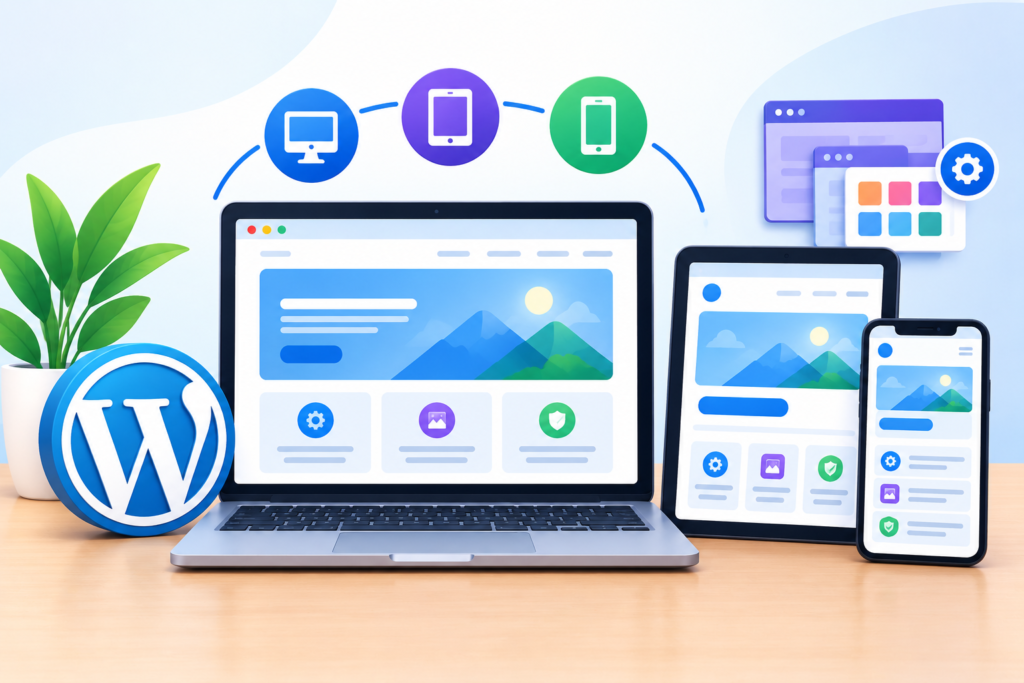
Responsive WordPress themes adapt their layouts to different screen sizes and viewing conditions. Rather than presenting a fixed desktop layout on every device, responsive design adjusts content widths, spacing, navigation, typography, and component arrangements to support comfortable interaction.
A responsive layout commonly uses flexible grids, relative sizing, CSS media queries, and appropriately sized images. For example, a three-column content section may display three cards on a wide desktop screen, two cards on a tablet, and a single column on a narrow mobile device. This arrangement allows content to remain readable without requiring visitors to zoom or scroll horizontally across the page.
Mobile usability involves more than reducing the width of desktop elements. Navigation controls need adequate spacing, buttons should be easy to activate, and forms should remain practical on touchscreens. Text must retain comfortable line lengths and readable sizes. Images should scale without distortion, while tables and complex components may require carefully designed responsive alternatives.
The official Google mobile-first indexing documentation explains Google’s use of the mobile version of website content for indexing. Website owners should therefore ensure that important content, metadata, and structured information remain available on mobile versions. Avoid hiding essential content simply to simplify a mobile layout.
Test responsive behaviour using both browser developer tools and physical devices where possible. Check common viewport widths, portrait and landscape orientations, navigation menus, image galleries, forms, and embedded media. Also inspect pages containing unusually long words, large tables, or third-party widgets, as these can expose layout problems that are not visible on standard demo pages.
Responsive design should be treated as an ongoing quality requirement rather than a one-time theme setting. New plugins, content blocks, advertisements, and design changes can introduce unexpected mobile issues. Regular testing helps preserve a consistent experience as the website evolves.
WordPress Theme Performance and Website Speed Optimization
Theme performance influences how efficiently a WordPress website delivers its pages and interactive features. A theme can contribute to loading time through its CSS, JavaScript, fonts, images, layout complexity, and the number of resources required to render a page.
A lightweight theme generally avoids unnecessary assets and provides a practical foundation for optimization. However, the term lightweight should be evaluated through testing rather than marketing claims. A theme that performs well on a simple demo may behave differently when combined with page builders, analytics tools, large image galleries, or several plugins.
Begin by measuring representative pages. Include the homepage, a standard content page, an article, and any important conversion page. Use PageSpeed Insights to review performance opportunities and Core Web Vitals measurements. Google’s Web Vitals documentation explains the user-experience metrics used to assess loading performance, responsiveness, and visual stability.
Optimization opportunities may include reducing unused CSS, limiting unnecessary JavaScript, using appropriately sized images, enabling browser caching, and selecting efficient font-loading strategies. Image formats such as WebP or AVIF can reduce image transfer size when supported by the site’s workflow. Lazy loading can also help defer off-screen images, although the primary visible image should not be delayed unnecessarily.
Avoid installing multiple plugins that perform overlapping optimization tasks. Conflicting caching, minification, or asset-management features can create broken layouts and unpredictable behaviour. Make changes incrementally, test after each significant adjustment, and retain a rollback option.
Hosting and server configuration also matter. A well-coded theme cannot compensate fully for inadequate server resources, poorly configured caching, or inefficient database operations. Performance improvements should therefore consider the complete website environment.
The objective is not simply to achieve a particular testing score. It is to provide pages that load reliably, respond promptly to user input, and remain visually stable during interaction.
WordPress Theme Security, Updates, and Safe Customization
Theme security is an essential part of maintaining a trustworthy WordPress website. Themes can contain vulnerabilities, outdated dependencies, insecure coding practices, or compatibility issues that expose websites to technical problems. Selecting a theme from a reputable source and maintaining it regularly helps reduce avoidable risks.
Before installation, review the developer’s identity, documentation, update history, support arrangements, and compatibility information. Avoid downloading themes from unverified websites or using unauthorized copies of premium products. Such downloads may contain modified files, malicious code, or components that do not receive legitimate updates.
Keep WordPress core, themes, and plugins updated through a controlled maintenance process. Before applying major updates, create a recent backup and test important changes on a staging environment where practical. This is particularly important for business websites, membership platforms, and online stores where a design or compatibility issue could interrupt important user journeys.
Use a child theme when custom PHP or CSS modifications need to be preserved independently of the parent theme. A child theme allows selected template files and styles to be overridden while retaining the parent theme’s underlying functionality. However, custom code still requires maintenance and compatibility testing.
Theme files should not be edited casually through the WordPress dashboard, especially on a live production website. A syntax error in a PHP file can cause a fatal error or make parts of the website inaccessible. Use version control or a documented deployment process for significant custom development.
Security also involves limiting administrative access, using strong authentication practices, and maintaining reliable backups. The WordPress Hardening documentation provides guidance on protecting WordPress installations.
Finally, monitor the website after updates. Check the homepage, navigation, forms, templates, and important plugin integrations. A successful update notification does not guarantee that every front-end component is functioning correctly.
WordPress Theme Accessibility and Inclusive Website Design
Accessibility ensures that people with different abilities can navigate, understand, and interact with a website. A WordPress theme should support inclusive design by providing understandable content structures, keyboard navigation, readable typography, appropriate colour contrast, and accessible interactive components.
A common accessibility issue involves using colour as the only way to communicate information. For example, a form may identify required fields exclusively through red text. Visitors with certain visual impairments may not recognize this distinction. Adding descriptive labels and clear instructions provides additional context. Similarly, links should be distinguishable from surrounding text through more than subtle colour changes where necessary.
Keyboard accessibility is another essential consideration. Visitors should be able to navigate menus, buttons, forms, and other interactive components without relying exclusively on a mouse. Visible focus indicators help users understand which element is currently selected. Avoid removing browser focus outlines unless an equally visible alternative is provided.
Heading hierarchy also contributes to accessibility. Use headings to organize content logically rather than selecting heading levels simply because their default appearance looks attractive. A page should generally have one clear primary heading, followed by appropriately nested subheadings. Images that communicate meaningful information should have descriptive alternative text, while purely decorative images can use empty alternative text.
The W3C Web Accessibility Initiative provides guidance on accessibility standards, including the Web Content Accessibility Guidelines. These resources can help developers understand requirements relating to perceivability, operability, understandability, and robustness.
Theme accessibility should be tested in real situations. Use keyboard-only navigation, inspect colour contrast, test form labels, and review pages with accessibility evaluation tools. Automated tools can identify certain issues, but they cannot reliably evaluate every aspect of usability.
Accessibility is not a single checkbox completed during installation. New content, plugins, custom components, and theme updates can introduce problems. Regular reviews help ensure that inclusive design remains part of the website’s ongoing development process.
WordPress Block Themes, Full Site Editing, and Modern Design Workflows
Block themes represent an important development in the WordPress design experience. They allow users to customize website templates and reusable layout components through the block-based Site Editor. Instead of limiting visual editing to individual pages and posts, users can manage broader elements of the website’s presentation.
The Site Editor can provide access to templates, template parts, navigation, global styles, and other design controls, depending on the active theme and WordPress version. Templates determine the structure of particular content types, while template parts allow recurring elements such as headers and footers to be reused across multiple layouts.
Global styles help maintain visual consistency. A website owner can establish typography, colours, spacing, and other design settings that apply across supported blocks. This reduces the need to manually repeat identical styling decisions on every page.
Block patterns provide reusable arrangements of blocks. For example, a business website might create a pattern containing a heading, supporting paragraph, image, and call-to-action button. Reusing this pattern across relevant pages can improve consistency and reduce repetitive design work. Patterns can be especially useful when several team members contribute content.
Before adopting a block theme, consider the existing website structure. A site with extensive custom PHP templates or specialized plugin integrations may require additional testing during migration. Some traditional theme features may also behave differently when moving to a block-based workflow.
The WordPress Site Editor documentation explains how users can work with templates, styles, and other editing features. Reviewing this documentation before making significant changes can help prevent accidental modifications to site-wide layouts.
A practical workflow begins with a staging environment, followed by the selection of a compatible block theme, configuration of global styles, customization of templates, and testing of important page types. Once the design is validated, changes can be deployed to the production website.
Block themes offer flexibility, but the most maintainable approach remains one that matches the team’s technical capabilities and content-management requirements.
WordPress Theme Compatibility with Plugins and Website Features
A WordPress theme does not operate independently. It interacts with WordPress core, plugins, hosting configurations, browsers, and third-party services. Compatibility should therefore be evaluated as part of the theme selection and maintenance process.
For example, an e-commerce website may use WooCommerce to manage products, carts, checkout functionality, and customer orders. Its theme must present these elements correctly and support the required templates. A theme may advertise WooCommerce compatibility, but the actual shopping experience should still be tested using representative products and transactions.
Page builders introduce another compatibility consideration. Some themes include built-in layout systems, while others are designed to work with specific visual editors. Installing multiple overlapping design systems can increase complexity and create unnecessary dependencies. Before combining a theme with a page builder, review the supported integration methods and determine whether both systems are needed.
Forms, membership features, multilingual plugins, search tools, and analytics integrations also require testing. A theme may display a form correctly on a desktop screen but cause spacing or interaction problems on mobile devices. Similarly, a plugin update may change markup or styling in ways that affect the theme’s appearance.
Use a staging environment to test significant changes before applying them to a live website. A useful compatibility checklist includes the homepage, navigation, content pages, archives, forms, account pages, checkout processes, and any custom post types.
When a problem appears, isolate the cause systematically. Temporarily switch to a default WordPress theme in a controlled environment and test whether the issue persists. If the problem disappears, investigate the original theme’s templates, styles, or integrations. If it remains, examine plugins, server configuration, or other contributing factors.
Avoid making several changes simultaneously because doing so makes the cause of an issue harder to identify. Record the original configuration, change one variable at a time, and maintain a rollback option.
Compatibility is not permanent. WordPress core updates, plugin releases, browser changes, and theme updates can introduce new behaviour. Regular testing helps maintain a reliable website as its technical environment evolves.
WordPress Child Themes, Custom Development, and Theme Migration
Child themes provide a structured way to customize an existing WordPress theme without directly modifying its original files. They are particularly useful when a website requires custom CSS, template overrides, or selected PHP functionality that should remain separate from the parent theme.
A child theme inherits much of its functionality and presentation from the parent theme. Developers can then introduce specific modifications through the child theme’s files. When the parent theme receives an update, its original files can generally be updated without automatically replacing the child theme’s custom files.
However, child themes do not eliminate every maintenance responsibility. If a parent theme changes its template structure or removes a function used by the child theme, customizations may require adjustments. Documenting modifications and testing updates remain important.
Custom theme development may be appropriate when a website has unique design requirements, specialized content structures, or performance considerations that cannot be addressed efficiently through an existing theme. Developers should follow WordPress coding standards, use appropriate escaping and sanitization, and avoid embedding unrelated business functionality into the presentation layer.
Theme migration requires additional planning. Changing themes can affect menus, widgets, template assignments, custom CSS, page layouts, and theme-specific shortcodes. Content may remain stored in WordPress while its previous visual presentation disappears. Before migration, inventory the website’s current features and identify dependencies that need replacement or reconstruction.
A reliable migration process includes:
- Creating a complete backup.
- Establishing a staging environment.
- Installing the new theme.
- Rebuilding required templates and navigation.
- Testing plugins and custom functionality.
- Reviewing mobile layouts and accessibility.
- Measuring performance.
- Confirming that important URLs and content remain available.
- Deploying changes with a rollback plan.
For websites with significant traffic or revenue dependencies, schedule migration work during a suitable maintenance window and communicate any expected disruption.
Theme changes should be treated as controlled technical projects rather than simple visual switches. Preparation reduces the risk of broken layouts, missing functionality, and avoidable downtime.
WordPress Theme Troubleshooting and Ongoing Maintenance
Theme-related problems can appear after updates, customization changes, plugin installations, or hosting configuration changes. Common symptoms include missing styles, broken layouts, PHP errors, unresponsive menus, incorrect template output, and unexpected spacing or typography changes.
Begin troubleshooting by identifying when the issue first appeared. Review recent theme updates, plugin changes, custom code modifications, and hosting adjustments. If the problem began immediately after a particular change, that information provides a useful starting point.
For visual issues, inspect the browser’s developer tools to identify CSS conflicts, missing assets, and JavaScript errors. For PHP-related failures, review available WordPress debugging information and server logs. Avoid displaying detailed error messages publicly on a production website because they may expose sensitive technical information.
A staging environment is especially useful for isolating conflicts. Temporarily deactivate relevant plugins, switch to a default theme, and test the affected page. Perform these checks carefully, particularly if the website processes orders, bookings, or user accounts. Record each change so that the original configuration can be restored.
Routine maintenance should include theme updates, backup verification, compatibility testing, and periodic visual reviews. A backup is only useful if it can be restored successfully, so recovery procedures should be tested rather than assumed.
Monitor important user journeys after maintenance. These may include contacting the business, submitting a form, browsing products, completing checkout, or accessing a customer account. A website can appear visually correct while a critical interactive feature is malfunctioning.
Keep a maintenance record containing update dates, theme versions, customizations, known issues, and recovery steps. This documentation becomes valuable when troubleshooting recurring problems or transferring responsibility between developers.
A proactive maintenance approach reduces the likelihood that small theme issues will develop into larger website disruptions. It also helps maintain a consistent experience as the website grows.
Common WordPress Theme Mistakes to Avoid
Choosing and maintaining a WordPress theme involves several decisions that can affect website usability, security, and long-term costs. Some mistakes are easy to overlook because the website may initially appear functional. Recognizing these issues early helps website owners avoid unnecessary redesigns and technical complications.
Choosing a theme based only on its demo appearance is a common mistake. Demonstration websites often use carefully selected images, short headings, and limited content. Real websites may contain longer articles, complex navigation, product variations, and forms. Always test a theme using representative content before committing to it.
Installing themes from untrusted sources creates avoidable security risks. Unauthorized theme downloads may contain modified code or lack legitimate updates. Obtain themes from the official directory or a reputable developer and review their licensing and support arrangements.
Editing parent theme files directly can cause customizations to disappear during updates. Use a child theme or an appropriate customization mechanism for changes that need to persist.
Ignoring mobile testing can result in navigation problems, overflowing content, unreadable text, and difficult forms. Review important pages at different screen sizes and test actual touch interactions.
Installing unnecessary design plugins can increase complexity and create overlapping functionality. Before adding a plugin, identify the specific requirement and check whether the active theme or WordPress already provides a suitable solution.
Neglecting backups before updates makes recovery more difficult if a theme update causes a compatibility problem. Maintain current backups and verify restoration procedures.
Using excessive visual effects can distract visitors and increase page complexity. Animations, sliders, decorative elements, and large background videos should support the content rather than compete with it.
Ignoring accessibility can make navigation and content difficult for visitors using assistive technologies. Check keyboard interaction, heading structure, labels, contrast, and focus indicators.
Failing to test plugin compatibility may cause broken layouts or interrupted functionality. Use staging environments for significant changes and validate important workflows before deployment.
Finally, avoid treating a high performance score as the only measure of website quality. Evaluate actual usability, loading behaviour, accessibility, reliability, and the needs of the intended audience.
Frequently Asked Questions
1. What is a WordPress theme, and why does a website need one?
A WordPress theme controls the visual presentation and layout of a website. It determines how content is organized into pages, posts, archives, navigation areas, headers, and footers. A theme provides the design framework that visitors interact with when browsing the website.
WordPress can manage content independently of a theme, but a suitable theme is needed to present that content through a coherent front-end design. Selecting an appropriate theme helps establish consistency, usability, and maintainability.
2. Are free WordPress themes suitable for business websites?
Free themes can be suitable for business websites when they meet the required design, compatibility, security, and maintenance standards. Their suitability depends on the developer, documentation, available updates, and the website’s specific requirements.
Before installation, review the theme’s features and test its layout using real content. A paid theme may offer additional support or design options, but payment alone does not guarantee quality or security.
3. What is the difference between a classic theme and a block theme?
Classic themes generally use PHP templates and traditional theme structures to control website presentation. Block themes use HTML-based templates and support the WordPress Site Editor for managing many aspects of the website’s design.
Block themes can make visual customization more accessible, while classic themes may suit established workflows or specialized development requirements. The appropriate choice depends on the website’s technical structure and the user’s editing preferences.
4. Can changing a WordPress theme affect SEO?
Changing a theme can affect SEO indirectly if it changes page structure, heading hierarchy, internal navigation, mobile presentation, loading performance, or structured data implementation.
Before migration, record important page URLs, inspect metadata and templates, and test representative pages. Ensure that important content remains accessible and that the new theme supports a consistent user experience.
5. How can I customize a WordPress theme without losing changes during updates?
Use a child theme for custom template files, PHP modifications, or CSS that needs to remain separate from the parent theme. For supported visual settings, use the WordPress Customizer, Site Editor, or theme-provided customization controls.
Document custom changes and test parent theme updates in a staging environment. Child themes preserve custom files, but they do not automatically resolve every compatibility issue.
6. Do WordPress themes affect website speed?
Yes. Themes can influence performance through their stylesheets, scripts, fonts, layout complexity, and other assets. However, overall website speed also depends on hosting, plugins, images, caching, and third-party services.
Measure representative pages using performance testing tools and optimize the complete website environment rather than assuming that the theme alone determines loading speed.
7. How often should WordPress themes be updated?
Install theme updates when they are available and appropriate for the website’s environment, particularly when they address security issues, bugs, or compatibility problems.
For business-critical websites, create a backup and test significant updates on staging before deploying them. After updating, inspect important templates, navigation, forms, and plugin integrations.
8. What should I do if a WordPress theme causes a website error?
Start by reviewing recent changes, including theme updates, plugin installations, and custom code modifications. Check available error logs and reproduce the issue in a staging environment where possible.
Temporarily switching to a default theme can help determine whether the problem is theme-related. If the issue involves PHP errors or complex customizations, consult a qualified WordPress developer and restore from a verified backup if necessary.
Best Practices Summary for WordPress Themes
Maintaining a professional WordPress website requires more than selecting an attractive design. A theme should support the website’s content, technical requirements, accessibility needs, and future development plans. Applying a consistent set of best practices helps reduce maintenance complexity and supports a reliable visitor experience.
Theme Selection
- Choose a theme that aligns with the website’s actual purpose and content structure.
- Review developer reputation, documentation, update history, and compatibility.
- Prefer themes from reputable distribution channels.
- Evaluate customization options before committing to a design.
- Avoid selecting a theme solely because its demonstration looks impressive.
Design and Usability
- Establish consistent typography, colours, spacing, and button styles.
- Keep navigation clear and descriptive.
- Use real content when testing layouts.
- Avoid unnecessary visual effects and excessive interface elements.
- Review important pages on desktop, tablet, and mobile screens.
Performance
- Measure representative pages before and after significant changes.
- Optimize images and avoid unnecessary assets.
- Use efficient font-loading practices.
- Review Core Web Vitals and real user experience.
- Avoid overlapping optimization plugins and conflicting configurations.
Security and Maintenance
- Keep WordPress core, themes, and plugins updated.
- Create backups before significant changes.
- Use child themes for persistent customizations.
- Avoid unauthorized theme downloads.
- Test updates and custom code in a staging environment.
- Maintain documentation of important modifications.
Accessibility and Compatibility
- Check keyboard navigation and visible focus indicators.
- Maintain logical heading structures.
- Provide descriptive labels and appropriate alternative text.
- Test forms, navigation, and interactive components.
- Verify compatibility with essential plugins and business workflows.
Long-Term Improvement
Review the theme periodically as website requirements evolve. A design that worked for a small blog may require adjustments when the website introduces new content types, customer accounts, e-commerce functionality, or additional languages.
Document changes, monitor performance, and maintain a tested recovery process. These practices make theme management more predictable and reduce the risk of avoidable disruptions.
Ultimately, a suitable WordPress theme is one that supports clear communication, accessible interaction, dependable functionality, and manageable ongoing maintenance.
Want to Implement This Easily?
Prompt Text:
You are an expert consultant. Based on the blog post titled “(WordPress Themes)”, provide a step-by-step, practical implementation guide. Include tools, best practices, common mistakes to avoid, and advanced tips. Assume the reader wants to implement everything discussed in this article effectively.
Call to Action:
Want our help implementing this? Just reach out to us via our website contact form: https://www.wpmaintenanceservice.com/contact-us/